Call Us: +91-7042640351, 9891868324

Overheating Issues in Lenovo Laptops: Causes and Permanent Fixes
By Admin / 25 Jun 2025
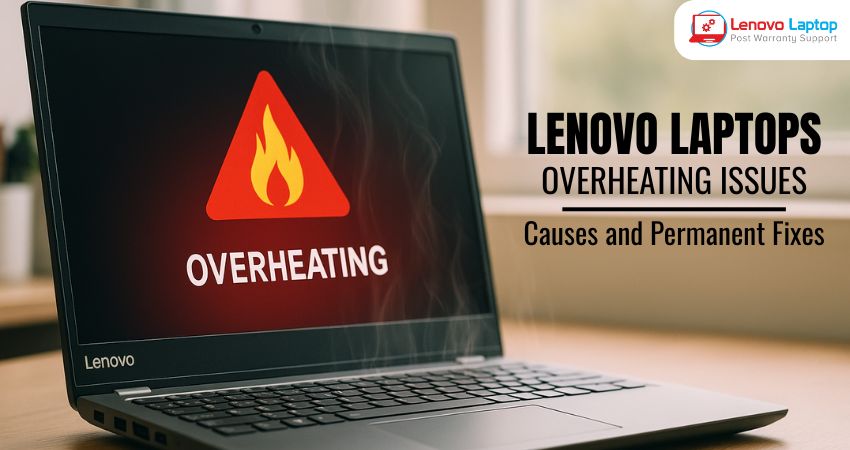
Overheating is a common problem experienced by many Lenovo laptop users. Whether you're a student, professional, or gamer, overheating in Lenovo laptops can affect performance, reduce the lifespan of internal components, and lead to unexpected shutdowns. Fortunately, with a good understanding of the causes and the right fixes, you can keep your Lenovo device running cool and efficiently.
In this blog, we’ll uncover the root causes of Lenovo laptop overheating, followed by actionable, long-term solutions to fix the issue. So, whether your laptop is heating up during regular browsing or while running heavy applications, you’ll find helpful insights below.
Common Factors that Cause Lenovo Laptops Overheating
Let’s explore the most common reasons behind overheating in Lenovo laptops:
1. Dust Accumulation in Vents and Fans
Dust is the number one culprit of thermal issues in laptops. When dust builds up in the cooling vents or fans, it blocks airflow, trapping heat inside. Lenovo laptops often have compact ventilation designs that get easily clogged over time.
Fix: Clean the vents using a soft brush or compressed air. Consider professional internal cleaning every 6–12 months.
2. Malfunctioning or Weak Cooling Fans
If your cooling fan is running too slow, making noise, or not running at all, it can’t dissipate heat effectively. This leads to a rapid rise in temperature, especially during multitasking.
Fix: Use Lenovo’s diagnostics tool or third-party software like HWMonitor to check fan RPM. Replace the fan if it's failing.
3. Poor Surface Usage (Blocking Airflow)
Using your Lenovo laptop on soft surfaces like beds, pillows, or laps blocks the air vents underneath, suffocating the cooling system. This is one of the most frequent causes of Lenovo laptop overheating during regular use.
Fix: Always place your laptop on a hard, flat surface or use a laptop cooling pad with built-in fans.
4. Dried-Out Thermal Paste
Thermal paste conducts heat from the CPU/GPU to the heat sink. Over time, it dries out or degrades, reducing its effectiveness. This leads to poor heat transfer and rising temperatures.
Fix: Reapply high-quality thermal paste after carefully disassembling the laptop or get it done by a certified technician.
5. Running Resource-Heavy Applications
Graphic design software, video editing tools, or gaming applications put heavy loads on the CPU and GPU, especially if the laptop doesn’t have proper cooling for such tasks.
Fix: Monitor which apps consume the most resources. Use Task Manager to end unnecessary processes or upgrade to a model designed for heavy usage.
How to Fix Lenovo Laptop Not Charging Properly – You might also be facing charging issues along with overheating. Learn how to fix both problems together.
6. BIOS and Driver Issues
Outdated BIOS or fan control drivers may not manage the thermal system optimally, causing delayed fan response or inefficient thermal management.
Fix: Visit Lenovo’s official support website to update BIOS and device drivers. Keep your system regularly updated.
7. Battery or Power Supply Problems
A faulty battery or charger can lead to heat generation around the power section of the laptop. Overcharging or using incompatible adapters can also cause thermal stress.
Fix: Use original Lenovo chargers. If you notice swelling or excessive heat near the battery, get it inspected or replaced immediately.
8. Background Malware or Cryptominers
If your Lenovo laptop is unknowingly infected with malware, especially cryptominers, it can cause spikes in CPU/GPU usage, which in turn raises the internal temperature.
Fix: Run a full antivirus scan using tools like Windows Defender, Malwarebytes, or Kaspersky. Remove unwanted apps or suspicious software.
9. Aging Hardware
Older Lenovo models with outdated hardware often struggle with modern software demands. As processors age, they become less efficient at managing heat.
Fix: Consider upgrading RAM or SSD (if possible). For older models, undervolting the CPU can reduce heat without compromising performance.
Top 5 Ways to Boost Lenovo Laptop Speed – Improving speed not only boosts performance but also helps your system run cooler.
Permanent Fixes for Lenovo Laptop Overheating
Here are some long-term solutions to keep your Lenovo laptop cool:
- Use a Laptop Cooling Pad – These accessories provide additional airflow and can reduce temperatures by 5–10°C.
- Regular Maintenance – Clean fans and vents regularly and apply fresh thermal paste every 1–2 years.
- Optimize Software – Disable unnecessary startup programs and background apps. Use Lenovo Vantage to manage performance profiles.
- Update BIOS and Drivers – Keep system firmware up to date to ensure your laptop manages heat efficiently.
- Control Power Settings – Switch to "Battery Saver" or "Power Saver" modes when not doing heavy tasks.
- Elevate Rear of Laptop – Using a laptop stand improves airflow from bottom vents.
- Use Efficient Charging Habits – Avoid overcharging and unplug the device after it reaches full battery when not in use.
- Upgrade Hardware – For older laptops, consider switching to SSD, increasing RAM, or using external GPU setups to reduce internal strain.
FAQs
Q1: Why does my Lenovo laptop get hot so quickly?
Dust in vents, high CPU usage, and weak fan performance can cause fast overheating in Lenovo laptops.
Q2: Is it normal for Lenovo laptops to get warm during use?
Mild warmth is normal, but excessive heat, especially around the keyboard or bottom panel, indicates an issue.
Q3: Can overheating damage my Lenovo laptop permanently?
Yes, prolonged overheating can damage internal components like CPU, GPU, or battery and reduce system lifespan.
Q4: How can I monitor my Lenovo laptop's temperature?
Use free tools like Core Temp, HWMonitor, or Lenovo Vantage to track internal temperatures in real time.
Q5: Does overheating affect Lenovo laptop performance?
Absolutely. Overheating triggers thermal throttling, which slows down CPU/GPU speed to prevent damage.
Q6: How often should I clean my Lenovo laptop fans?
Every 6 months is ideal, but more frequent cleaning may be needed in dusty environments.
Q7: What temperatures are considered too hot for a Lenovo laptop?
CPU temperatures consistently above 90°C or GPU above 85°C are too high and may indicate a thermal problem.
Q8: Is it safe to use my Lenovo laptop while it's hot?
Short-term use is okay, but prolonged high temperatures can cause permanent damage or sudden shutdowns.
Conclusion
Lenovo laptop overheating can be frustrating, but it’s a solvable issue with the right knowledge and regular care. From simple cleaning routines to software optimization and hardware upgrades, there are many effective ways to keep your Lenovo device cool and efficient. Ignoring overheating can lead to serious damage, so it's best to address it early and follow best practices for laptop maintenance.
If your laptop continues to heat up despite these steps, don’t hesitate to consult a professional technician. A cool Lenovo is a reliable Lenovo — and with these permanent fixes for overheating in Lenovo laptops, you can extend your laptop’s life and maintain peak performance.
 Share
Share
 Tweet
Tweet
 Share
Share
 Share
Share
Recent Post
-
-

-
-

-

-

-

-
-
-
-
-
-

-

-

-

-

-

-

-

-

-

-
-

-

-

-

-
-

-
-
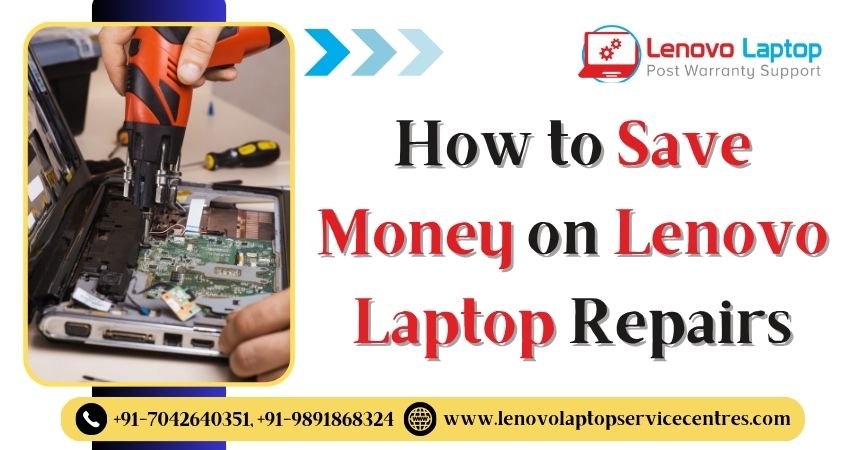
How to Save Money on Lenovo Laptop Repairs
13 Oct 2025
-

-

10 Common Issues Faced by Lenovo Laptop Users
04 Oct 2025
-

-
-
-

-
-

-

-

-
-
Lenovo Laptop Boot Loop Issue – How to Repair
12 Aug 2025
-
Lenovo Laptop Sound Not Working – Easy Fixes
07 Aug 2025
-
-
-
-
-
-
-

How to Factory Reset a Lenovo Laptop?
30 Jun 2025
-
-

-

-

-

-

-
-

Cannot Load Driver ENE.SYS? Try These 6 Fixes!
12 Dec 2024
-

-

-

-
-

-
-

-

-
-
-

-

-
-

-
How to Solve Lenovo Laptop Hanging Problem
26 Oct 2024
-

-

-

How to Restart Lenovo Laptop with Black Screen
22 Oct 2024
-

-

-
-

-

-
-

-

Lenovo Laptop Power Button on but no Display
02 Sep 2024
-

How to Fix Wi-Fi Not Showing on Windows 10/11
30 Aug 2024
-
Lenovo Laptop Touchpad Replacement Cost in India
28 Aug 2024
-

-
-

How to Unlock a Locked Lenovo Laptop Keyboard
12 Aug 2024
-

-
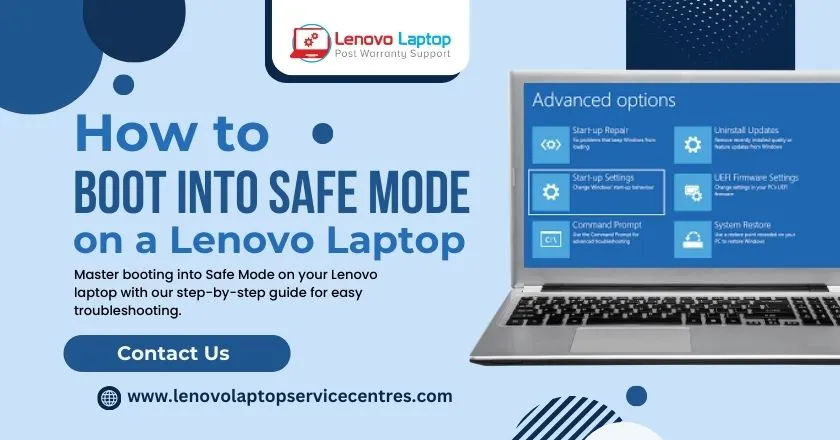
How to Boot Into Safe Mode On a Lenovo Laptop
31 Jul 2024
-

-
-

-

-

How to Check Lenovo Laptop Fan is Working or Not
09 Jul 2024
-

How to Fix Bluetooth Problem in Lenovo Laptop
05 Jul 2024
-

-
How to Install OS (Operating System) on Laptop
27 Jun 2024
-
How to Fix It When Windows 11 Won't Shut Down
21 Jun 2024
-
-

-
-
Lenovo E-41 25 Panel Replacement Cost in India
31 May 2024
-

How to Fix Stuck Keys on Lenovo Laptop Keyboard
30 May 2024
-

-

-
-

-

-
-
Lenovo Laptop Black Screen Issue on Windows 11
17 Apr 2024
-
-
How to Download Lenovo Vantage for Windows 11
15 Apr 2024
-
How to Get Lenovo Accidental Damage Protection
11 Apr 2024
-
-
-
-
Lenovo System Update Download For Windows 11
06 Apr 2024
-
-
-

-
Lenovo Laptop Security Issues in windows 11
04 Apr 2024
-
-
How to Check Battery Health in Lenovo Laptop
30 Mar 2024
-

-
-
-
-
-
-
-
How to Run Hardware Diagnostics on Lenovo Laptop
20 Dec 2023
-
How to find model number of lenovo laptop
18 Dec 2023
-
-
-
-
How to Update Drivers in Lenovo Laptops
02 Dec 2023
-

Why is my lenovo laptop making a buzzing noise
28 Nov 2023
-

-
-

-
-
Best Guide: Resolve Lenovo Laptop Touchpad Issue
11 Oct 2023
-
How to Troubleshoot Lenovo Laptop Battery Issues
16 Aug 2023
-
Lenovo Laptop Hinges Repair or Replacement Cost
09 Aug 2023
-
How to Find Lenovo Laptop Serial Number
08 Aug 2023
-

-
Lenovo Laptop SSD Upgradation Cost
18 Jul 2023
-

Lenovo Laptop Camera Replacement Cost
18 Jul 2023
-
-

Lenovo Laptop Battery Replacement Cost
13 Jul 2023
-
Lenovo Laptop Screen Replacement Cost
12 Jul 2023
-
Lenovo Laptop Keyboard Replacement Cost
12 Jul 2023
-
-
How to Fix Camera Issue in Lenovo Laptop
07 Jul 2023
-

How to Format Lenovo Laptop with USB
06 Jul 2023
-

How to Increase Battery Life on a Lenovo Laptop
21 Jun 2023
-

How to Fix White Screen on Lenovo Laptop
20 Jun 2023
-
Lenovo Laptop Motherboard Replacement Cost
19 Jun 2023
-
How do I stop my Lenovo laptop from overheating?
16 Jun 2023
-
-

-

-
-
-
-
-
-
-
-
-

-

-
-
-
-
What is Cost of Lenovo Laptop in India?
22 Sep 2022
-
Lenovo Laptop Problems Black Screen
21 Sep 2022
Looking For A Fast & Reliable Laptop Repair Service
We have professional technicians, fast turnaround times and affordable rates. Book Your Repair Job Today!
We specialize in all types of laptop services and provide reliable and quality door step service to our clients