Call Us: +91-7042640351, 9891868324

How to Fix Microphone Not Working on Lenovo IdeaPad
By Admin / 17 Jul 2025
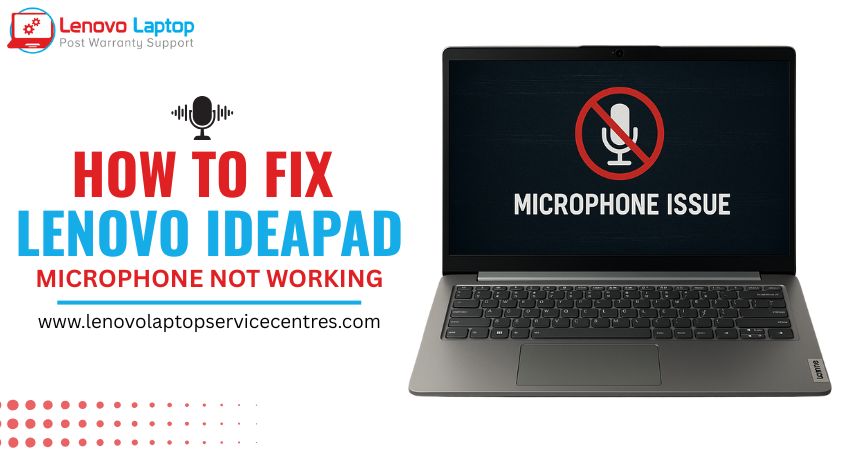
When your IdeaPad microphone not working issue arises, it can disrupt important meetings, online classes, or video calls. Whether you own a Lenovo IdeaPad 3, IdeaPad 5, IdeaPad 300, IdeaPad 310, IdeaPad 320, or IdeaPad 330, this guide provides a professional and comprehensive solution to troubleshoot your microphone.
The microphone not working Lenovo IdeaPad issue is commonly caused by software glitches, outdated drivers, or incorrect settings. Fortunately, software troubleshooting (drivers, settings, Lenovo Vantage) remains consistent across most IdeaPad models. However, the hardware repair/replacement process may vary slightly due to differences in internal design and components.
Causes of Microphone Not Working on Lenovo IdeaPad Laptops
If your mic not working on Lenovo IdeaPad, the following are common culprits:
- Microphone is muted or disabled in sound settings
- Outdated or corrupted audio drivers
- Incorrect default recording device selected
- Lenovo Vantage settings misconfigured
- Privacy settings blocking microphone access
- Audio enhancements causing conflicts
- Physical damage or loose microphone connection
- Operating system bugs after updates
- Third-party app interference
- Hardware malfunction in the mic module
How to Fix Lenovo IdeaPad Microphone Not Working
Let’s go step-by-step to resolve the microphone not working Lenovo IdeaPad problem:
1. Unmute and Enable Microphone
- Right-click the sound icon in the taskbar ? Select Sound Settings
- Scroll down to Input ? Make sure the microphone is not muted and volume is up
- Go to Manage Sound Devices ? Ensure the mic is enabled
2. Check Privacy Settings
- Open Settings ? Privacy ? Microphone
- Ensure Microphone access for this device is ON
- Allow apps to access your microphone
3. Set the Correct Default Device
- Right-click on the sound icon ? Choose Sounds
- Go to the Recording tab
- Right-click your mic ? Set as Default Device and Default Communication Device
4. Update or Reinstall Audio Drivers
- Press Win + X ? Select Device Manager
- Expand Audio Inputs and Outputs
- Right-click on your microphone ? Click Update Driver
- If issue persists, Uninstall device, restart the system, and let Windows reinstall it
5. Use Lenovo Vantage
- Open or install Lenovo Vantage from Microsoft Store
- Go to Device ? My Device Settings ? Audio/Visual
- Check if mic is disabled or turned down and adjust accordingly
6. Disable Audio Enhancements
- Go to Sound Settings ? Recording ? Microphone ? Properties
- Navigate to Enhancements tab ? Tick Disable all enhancements
- In the Advanced tab, uncheck Allow applications to take exclusive control
7. Test in Safe Mode or with External Mic
- Boot into Safe Mode to check if any third-party apps are interfering
- Plug in an external microphone to see if the internal mic is faulty
8. Perform Windows Troubleshooter
- Go to Settings ? System ? Troubleshoot ? Other Troubleshooters
- Run the Recording Audio troubleshooter
Also Read - Lenovo Laptop Camera Not Working? 9 Easy Steps to Fix
Why Choose Lenovo Laptop Service Center for Microphone Repair
If your mic not working on Lenovo IdeaPad persists even after software fixes, it's time to consider professional help. Here's why you should visit an authorized Lenovo Laptop Service Centres:
- Expert Technicians: Specially trained to diagnose Lenovo-specific microphone hardware issues
- Genuine Parts: Get original replacement mics and internal cables
- Model-Specific Repairs: Each IdeaPad model—IdeaPad 3, 5, 320, etc.—has a different internal layout, and professionals ensure correct disassembly and reassembly
- Quick Turnaround: Most microphone repairs are completed within hours
- Warranty Assurance: Protects your laptop’s warranty during repairs
- Customer Support: Responsive assistance before and after service
Whether it's a loose internal wire, damaged audio jack, or failed microphone module, expert technicians ensure your IdeaPad microphone not working issue is fixed without risking further damage.
 Share
Share
 Tweet
Tweet
 Share
Share
 Share
Share
Recent Post
-
-
-
-

-

-

-

-

-

-

-
-

-
-

-

-

-

-

-
-

-

-

-

-

-

-

-

-

-

-

-

-
-

How to Save Money on Lenovo Laptop Repairs
13 Oct 2025
-

-

10 Common Issues Faced by Lenovo Laptop Users
04 Oct 2025
-
-
-

-

-

-

-

-

-

-
Lenovo Laptop Boot Loop Issue – How to Repair
12 Aug 2025
-
Lenovo Laptop Sound Not Working – Easy Fixes
07 Aug 2025
-
-
-
-
-

-

-

How to Factory Reset a Lenovo Laptop?
30 Jun 2025
-
-

-

-

-

-

-

-

Cannot Load Driver ENE.SYS? Try These 6 Fixes!
12 Dec 2024
-

-

-

-

-

-
-

-

-
-
-

-

-

-

-
How to Solve Lenovo Laptop Hanging Problem
26 Oct 2024
-

-

-

How to Restart Lenovo Laptop with Black Screen
22 Oct 2024
-

-

-
-

-

-
-

-

Lenovo Laptop Power Button on but no Display
02 Sep 2024
-

How to Fix Wi-Fi Not Showing on Windows 10/11
30 Aug 2024
-
Lenovo Laptop Touchpad Replacement Cost in India
28 Aug 2024
-

-

-

How to Unlock a Locked Lenovo Laptop Keyboard
12 Aug 2024
-

-
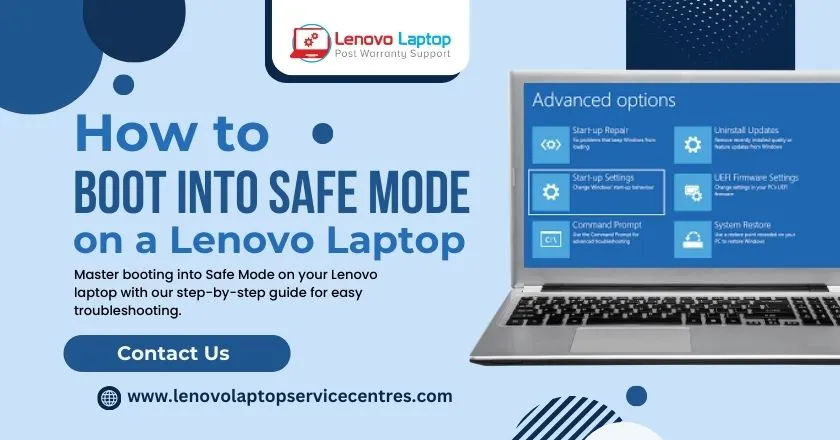
How to Boot Into Safe Mode On a Lenovo Laptop
31 Jul 2024
-

-
-

-

-

How to Check Lenovo Laptop Fan is Working or Not
09 Jul 2024
-

How to Fix Bluetooth Problem in Lenovo Laptop
05 Jul 2024
-

-
How to Install OS (Operating System) on Laptop
27 Jun 2024
-
How to Fix It When Windows 11 Won't Shut Down
21 Jun 2024
-
-

-

-

Lenovo E-41 25 Panel Replacement Cost in India
31 May 2024
-

How to Fix Stuck Keys on Lenovo Laptop Keyboard
30 May 2024
-

-

-

-

-

-
-

Lenovo Laptop Black Screen Issue on Windows 11
17 Apr 2024
-

-

How to Download Lenovo Vantage for Windows 11
15 Apr 2024
-

How to Get Lenovo Accidental Damage Protection
11 Apr 2024
-
-

-
-
Lenovo System Update Download For Windows 11
06 Apr 2024
-

-
-

-

Lenovo Laptop Security Issues in windows 11
04 Apr 2024
-
-

How to Check Battery Health in Lenovo Laptop
30 Mar 2024
-

-
-
-

-
-

-

-

How to Run Hardware Diagnostics on Lenovo Laptop
20 Dec 2023
-
How to find model number of lenovo laptop
18 Dec 2023
-
-
-

-
How to Update Drivers in Lenovo Laptops
02 Dec 2023
-

Why is my lenovo laptop making a buzzing noise
28 Nov 2023
-

-
-

-
-

Best Guide: Resolve Lenovo Laptop Touchpad Issue
11 Oct 2023
-
How to Troubleshoot Lenovo Laptop Battery Issues
16 Aug 2023
-
Lenovo Laptop Hinges Repair or Replacement Cost
09 Aug 2023
-
How to Find Lenovo Laptop Serial Number
08 Aug 2023
-

-

Lenovo Laptop SSD Upgradation Cost
18 Jul 2023
-

Lenovo Laptop Camera Replacement Cost
18 Jul 2023
-
-

Lenovo Laptop Battery Replacement Cost
13 Jul 2023
-

Lenovo Laptop Screen Replacement Cost
12 Jul 2023
-
Lenovo Laptop Keyboard Replacement Cost
12 Jul 2023
-

-

How to Fix Camera Issue in Lenovo Laptop
07 Jul 2023
-

How to Format Lenovo Laptop with USB
06 Jul 2023
-

How to Increase Battery Life on a Lenovo Laptop
21 Jun 2023
-

How to Fix White Screen on Lenovo Laptop
20 Jun 2023
-

Lenovo Laptop Motherboard Replacement Cost
19 Jun 2023
-

How do I stop my Lenovo laptop from overheating?
16 Jun 2023
-
-

-

-

-
-
-
-

-
-
-
-

-

-
-

-

-

What is Cost of Lenovo Laptop in India?
22 Sep 2022
-
Lenovo Laptop Problems Black Screen
21 Sep 2022
Looking For A Fast & Reliable Laptop Repair Service
We have professional technicians, fast turnaround times and affordable rates. Book Your Repair Job Today!
We specialize in all types of laptop services and provide reliable and quality door step service to our clients