Call Us: +91-7042640351, 9891868324

Webcam or Camera Not Detected on Lenovo Laptops: How To Fix?
By Admin / 01 Aug 2025
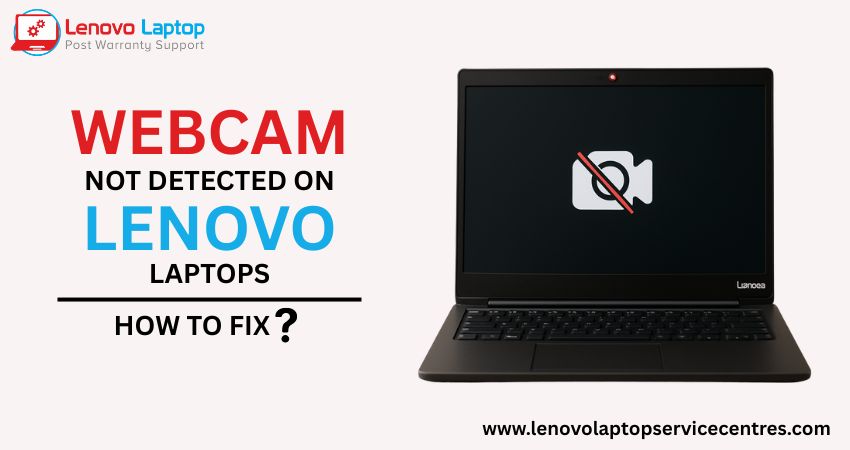
Experiencing a “webcam not detected” error on your Lenovo laptop can be frustrating—especially when you need video conferencing or online classes. Fortunately, most camera issues arise from software settings or outdated drivers rather than hardware failure. Let’s explore the common causes of Lenovo laptop camera problems and how to fix them.
Causes for Lenovo Laptop Camera Problems
- Privacy Settings Disabled
Windows 10/11 includes privacy controls that can block apps from accessing your camera. If camera access is turned off, your webcam won’t appear in Device Manager or work in applications. - Outdated or Corrupted Camera Driver
A missing or corrupted camera driver often leads to the “webcam not detected” message. Without the correct driver, Windows cannot communicate with the webcam hardware. - Disabled in Device Manager
Sometimes the camera is simply disabled in Device Manager. This can happen after a system update or driver rollback. - BIOS or UEFI Settings
The webcam may be turned off at the firmware level. An outdated or misconfigured BIOS can disable on-board peripherals, including the camera module. - Physical Shutter or Privacy Switch
Many Lenovo models include a mechanical shutter (e.g., ThinkShutter) or privacy key (Fn + Space) that physically blocks the lens. If activated, no software can override it. - Hardware Failure
Although less common, a faulty camera cable or module can cause permanent detection failures. If none of the software fixes work, the hardware may need professional repair.
How To Fix Webcam Not Detected on Lenovo Laptops
- Check Windows Privacy Settings
Go to Settings > Privacy > Camera.
Ensure Allow apps to access your camera is On, and scroll down to enable access for the specific app you’re using (e.g., Zoom, Teams).
- Enable Camera in Device Manager
Press Win + X and select Device Manager.
Expand Cameras or Imaging devices.
Right-click your webcam and choose Enable device (if disabled).
- Update or Reinstall the Camera Driver
In Device Manager, right-click the webcam and select Update driver > Search automatically for drivers.
Alternatively, download the latest Lenovo camera driver from the official support site or use Lenovo Vantage.
If updating doesn’t help, choose Uninstall device, reboot, and let Windows reinstall the driver automatically.
- Run Windows Update
Go to Settings > Update & Security > Windows Update.
Click Check for updates and install any available patches, as these may include camera-related fixes.
- Verify BIOS/UEFI Settings
Restart your laptop and press F2, F10, or Del (depending on model) to enter BIOS.
Look for an Integrated Camera or Peripheral section and ensure the camera is Enabled.
Save changes and exit.
- Inspect the Physical Shutter or Privacy Key
If your Lenovo has a ThinkShutter or similar mechanical cover, slide it open.
On laptops with a camera toggle key (often Fn + Space), press it to re-enable the webcam.
- Test with the Windows Camera App
Open the Camera app (type “Camera” in the Start menu).
If you see a live preview, your webcam is functioning; otherwise, you’ll receive an error message that can guide further troubleshooting.
- Scan for Malware or Third-Party Conflicts
Run a full system scan to rule out malware blocking camera access.
Temporarily disable or uninstall any third-party security software that may restrict camera use.
- Perform a System Restore or Reset
If the issue began recently, use System Restore to roll back to a point when the webcam worked.
As a last resort, consider resetting Windows (while keeping your files) via Settings > Recovery.
Get Expert help With Lenovo Laptop Service Centres
We at Lenovo Laptop Service Centres are a private center specializing in all Lenovo laptop repair needs—including webcam issues, screen problems, and hardware diagnostics. Our certified technicians use genuine parts and industry-leading tools to ensure your laptop is back to full functionality. Contact us today to schedule a service appointment and experience reliable, professional support for your Lenovo device.
Call - 91-7042640351, 9891868324
Email - info@laptopsservice.center
 Share
Share
 Tweet
Tweet
 Share
Share
 Share
Share
Recent Post
-
-
-
-

-

-

-

-

-

-
-
-

-
-

-

-

-

-

-

-

-

-

-

-

-

-

-

-

-

-

-

-
-

How to Save Money on Lenovo Laptop Repairs
13 Oct 2025
-

-

10 Common Issues Faced by Lenovo Laptop Users
04 Oct 2025
-
-
-

-

-
-

-

-

-

-
Lenovo Laptop Boot Loop Issue – How to Repair
12 Aug 2025
-
Lenovo Laptop Sound Not Working – Easy Fixes
07 Aug 2025
-
-
-
-
-

-

-

How to Factory Reset a Lenovo Laptop?
30 Jun 2025
-
-

-

-

-

-

-

-

Cannot Load Driver ENE.SYS? Try These 6 Fixes!
12 Dec 2024
-

-

-

-

-

-

-

-

-
-
-

-

-

-

-
How to Solve Lenovo Laptop Hanging Problem
26 Oct 2024
-

-

-

How to Restart Lenovo Laptop with Black Screen
22 Oct 2024
-

-

-

-

-

-
-

-

Lenovo Laptop Power Button on but no Display
02 Sep 2024
-

How to Fix Wi-Fi Not Showing on Windows 10/11
30 Aug 2024
-
Lenovo Laptop Touchpad Replacement Cost in India
28 Aug 2024
-

-
-

How to Unlock a Locked Lenovo Laptop Keyboard
12 Aug 2024
-

-
How to Boot Into Safe Mode On a Lenovo Laptop
31 Jul 2024
-

-
-

-

-

How to Check Lenovo Laptop Fan is Working or Not
09 Jul 2024
-

How to Fix Bluetooth Problem in Lenovo Laptop
05 Jul 2024
-

-
How to Install OS (Operating System) on Laptop
27 Jun 2024
-
How to Fix It When Windows 11 Won't Shut Down
21 Jun 2024
-
-

-
-

Lenovo E-41 25 Panel Replacement Cost in India
31 May 2024
-

How to Fix Stuck Keys on Lenovo Laptop Keyboard
30 May 2024
-
-

-

-

-

-
-

Lenovo Laptop Black Screen Issue on Windows 11
17 Apr 2024
-
-

How to Download Lenovo Vantage for Windows 11
15 Apr 2024
-

How to Get Lenovo Accidental Damage Protection
11 Apr 2024
-
-

-
-
Lenovo System Update Download For Windows 11
06 Apr 2024
-

-
-

-
Lenovo Laptop Security Issues in windows 11
04 Apr 2024
-
-

How to Check Battery Health in Lenovo Laptop
30 Mar 2024
-

-
-
-

-
-

-
-

How to Run Hardware Diagnostics on Lenovo Laptop
20 Dec 2023
-
How to find model number of lenovo laptop
18 Dec 2023
-
-
-

-
How to Update Drivers in Lenovo Laptops
02 Dec 2023
-

Why is my lenovo laptop making a buzzing noise
28 Nov 2023
-

-
-

-
-

Best Guide: Resolve Lenovo Laptop Touchpad Issue
11 Oct 2023
-
How to Troubleshoot Lenovo Laptop Battery Issues
16 Aug 2023
-
Lenovo Laptop Hinges Repair or Replacement Cost
09 Aug 2023
-
How to Find Lenovo Laptop Serial Number
08 Aug 2023
-

-

Lenovo Laptop SSD Upgradation Cost
18 Jul 2023
-

Lenovo Laptop Camera Replacement Cost
18 Jul 2023
-
-

Lenovo Laptop Battery Replacement Cost
13 Jul 2023
-

Lenovo Laptop Screen Replacement Cost
12 Jul 2023
-

Lenovo Laptop Keyboard Replacement Cost
12 Jul 2023
-

-

How to Fix Camera Issue in Lenovo Laptop
07 Jul 2023
-

How to Format Lenovo Laptop with USB
06 Jul 2023
-
How to Increase Battery Life on a Lenovo Laptop
21 Jun 2023
-

How to Fix White Screen on Lenovo Laptop
20 Jun 2023
-

Lenovo Laptop Motherboard Replacement Cost
19 Jun 2023
-

How do I stop my Lenovo laptop from overheating?
16 Jun 2023
-
-

-

-

-
-
-
-

-
-
-
-

-

-
-
-
-
What is Cost of Lenovo Laptop in India?
22 Sep 2022
-
Lenovo Laptop Problems Black Screen
21 Sep 2022
Looking For A Fast & Reliable Laptop Repair Service
We have professional technicians, fast turnaround times and affordable rates. Book Your Repair Job Today!
We specialize in all types of laptop services and provide reliable and quality door step service to our clients