Call Us: +91-7042640351, 9891868324

Lenovo Laptop Sound Not Working – Easy Fixes
By Admin / 07 Aug 2025
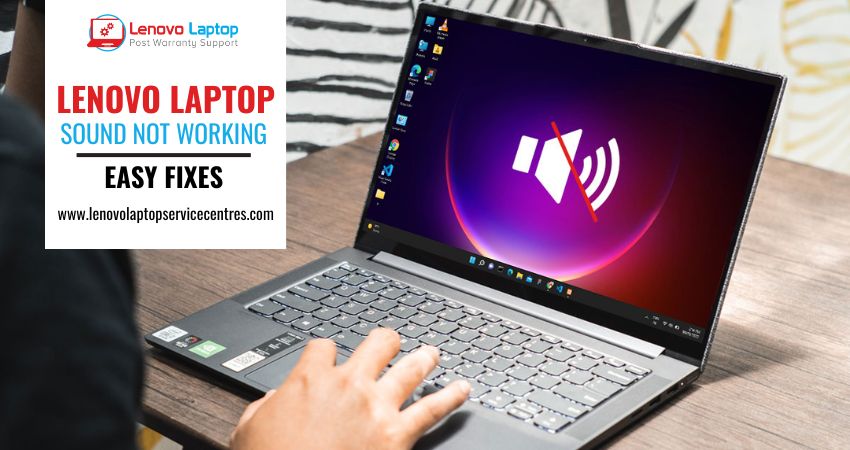
Struggling with lenovo laptop sound not working can turn a productive workday into a frustrating experience. Whether it’s watching videos, joining virtual meetings, or listening to music, clear audio is essential. Fortunately, most sound issues on Lenovo laptops can be resolved quickly by following a few troubleshooting steps. In this guide, we’ll walk you through easy fixes to get your audio back on track.
Fix Audio Not Working on Lenovo Laptop
1. Check the Basics
- Volume and Mute Settings
- Click the speaker icon in the Windows taskbar and ensure the volume slider is up.
- Verify that the speaker isn’t muted (the icon should not display a red circle with a line).
- Click the speaker icon in the Windows taskbar and ensure the volume slider is up.
- External Connections
- If you use external speakers or headphones, confirm they’re plugged in properly and powered on.
- Test them on another device to rule out a faulty cable or accessory.
- If you use external speakers or headphones, confirm they’re plugged in properly and powered on.
2. Select the Correct Playback Device
- Right-click the speaker icon and choose “Open Sound settings.”
- Under “Output,” pick your desired device (speakers, headphones, or Bluetooth).
- If the device isn’t listed, right-click inside the list, check “Show disabled devices,” and enable any relevant entries.
3. Update or Reinstall Audio Drivers
Outdated or corrupt drivers often cause audio not working on lenovo laptop issues.
- Press Win + X and select Device Manager.
- Expand “Sound, video and game controllers.”
- Right-click your audio device (e.g., Realtek High Definition Audio) and choose “Update driver.”
- Opt for “Search automatically for updated driver software.”
- If updating fails, right-click the device again, select “Uninstall device,” then restart your laptop—Windows will reinstall the driver.
4. Restart Windows Audio Services
Sometimes the service handling sound crashes, leading to audio on lenovo laptop not working.
- Press Win + R, type services.msc, and hit Enter.
- Scroll to “Windows Audio” and “Windows Audio Endpoint Builder.”
- Right-click each, choose Restart.
- Ensure their Startup Type is set to Automatic (double-click the service to check).
5. Use the Windows Audio Troubleshooter
Windows includes a built-in tool to diagnose common sound problems.
- Go to Settings > Update & Security > Troubleshoot > Additional troubleshooters.
- Select “Playing Audio” and click Run the troubleshooter.
- Follow the on-screen instructions to detect and apply fixes automatically.
6. Inspect Hardware and Audio Jack
Physical damage inside the headphone jack or speaker grille can lead to lenovo laptop audio not working.
- Headphone Jack Test: Insert and remove a headphone plug several times to ensure the switch inside the jack isn’t stuck.
- Built-in Speakers: Play audio at low volume and listen closely—if you hear faint sound, the speakers may be damaged and require professional repair.
7. Check for Windows Updates
Occasionally, a recent Windows update can disrupt your audio.
- Navigate to Settings > Update & Security > Windows Update.
- Click Check for updates.
- Install any pending updates and restart your laptop.
8. Roll Back Recent Driver or System Changes
If the problem started after a driver or system update, reverting to a previous version may help:
- In Device Manager, right-click the audio device, select Properties, go to the Driver tab, and click Roll Back Driver if available.
- In Settings > Update & Security > Recovery, use “Go back to the previous version of Windows 10/11” if offered.
Conclusion
Experiencing lenovo laptop sound not working can disrupt your daily tasks, but most audio glitches are easy to troubleshoot. By checking your volume settings, verifying playback devices, updating drivers, restarting audio services, and using built-in troubleshooters, you can quickly resolve the audio on lenovo laptop not working error. If hardware faults persist, consider contacting Lenovo support or a certified technician for a deeper inspection. With these steps, you’ll have your sound back and be able to enjoy uninterrupted audio on your Lenovo laptop.
For professional assistance, consider visiting Lenovo Laptop Service Centres, a private center that fixes all lenovo laptop sound issues and other related Lenovo laptop problems.
 Share
Share
 Tweet
Tweet
 Share
Share
 Share
Share
Recent Post
-

-

-

-

-

-

-

-

-
-

-
-

-

-

-

-

-
-

-

-

-

-

-

-

-

-

-

-

-

-
-

How to Save Money on Lenovo Laptop Repairs
13 Oct 2025
-

-

10 Common Issues Faced by Lenovo Laptop Users
04 Oct 2025
-
-
-

-

-
-

-

-

-

-
Lenovo Laptop Boot Loop Issue – How to Repair
12 Aug 2025
-
Lenovo Laptop Sound Not Working – Easy Fixes
07 Aug 2025
-
-
-
-
-

-

-

How to Factory Reset a Lenovo Laptop?
30 Jun 2025
-
-

-

-

-

-

-

-

Cannot Load Driver ENE.SYS? Try These 6 Fixes!
12 Dec 2024
-

-

-

-

-

-

-

-

-
-
-

-

-

-

-
How to Solve Lenovo Laptop Hanging Problem
26 Oct 2024
-

-

-

How to Restart Lenovo Laptop with Black Screen
22 Oct 2024
-

-

-

-

-

-
-

-

Lenovo Laptop Power Button on but no Display
02 Sep 2024
-

How to Fix Wi-Fi Not Showing on Windows 10/11
30 Aug 2024
-

Lenovo Laptop Touchpad Replacement Cost in India
28 Aug 2024
-

-

-

How to Unlock a Locked Lenovo Laptop Keyboard
12 Aug 2024
-

-
How to Boot Into Safe Mode On a Lenovo Laptop
31 Jul 2024
-

-
-

-

-

How to Check Lenovo Laptop Fan is Working or Not
09 Jul 2024
-

How to Fix Bluetooth Problem in Lenovo Laptop
05 Jul 2024
-

-
How to Install OS (Operating System) on Laptop
27 Jun 2024
-
How to Fix It When Windows 11 Won't Shut Down
21 Jun 2024
-
-

-
-

Lenovo E-41 25 Panel Replacement Cost in India
31 May 2024
-

How to Fix Stuck Keys on Lenovo Laptop Keyboard
30 May 2024
-

-

-

-

-

-
-

Lenovo Laptop Black Screen Issue on Windows 11
17 Apr 2024
-
-

How to Download Lenovo Vantage for Windows 11
15 Apr 2024
-

How to Get Lenovo Accidental Damage Protection
11 Apr 2024
-
-

-
-
Lenovo System Update Download For Windows 11
06 Apr 2024
-

-
-

-
Lenovo Laptop Security Issues in windows 11
04 Apr 2024
-
-

How to Check Battery Health in Lenovo Laptop
30 Mar 2024
-

-
-
-

-
-

-

-

How to Run Hardware Diagnostics on Lenovo Laptop
20 Dec 2023
-
How to find model number of lenovo laptop
18 Dec 2023
-
-
-

-
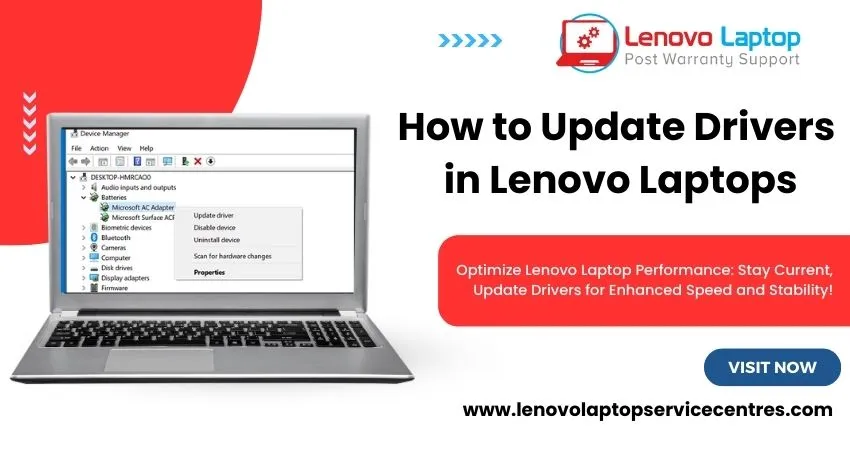
How to Update Drivers in Lenovo Laptops
02 Dec 2023
-

Why is my lenovo laptop making a buzzing noise
28 Nov 2023
-

-
-

-
-

Best Guide: Resolve Lenovo Laptop Touchpad Issue
11 Oct 2023
-
How to Troubleshoot Lenovo Laptop Battery Issues
16 Aug 2023
-
Lenovo Laptop Hinges Repair or Replacement Cost
09 Aug 2023
-
How to Find Lenovo Laptop Serial Number
08 Aug 2023
-

-

Lenovo Laptop SSD Upgradation Cost
18 Jul 2023
-

Lenovo Laptop Camera Replacement Cost
18 Jul 2023
-
-

Lenovo Laptop Battery Replacement Cost
13 Jul 2023
-

Lenovo Laptop Screen Replacement Cost
12 Jul 2023
-

Lenovo Laptop Keyboard Replacement Cost
12 Jul 2023
-

-

How to Fix Camera Issue in Lenovo Laptop
07 Jul 2023
-

How to Format Lenovo Laptop with USB
06 Jul 2023
-

How to Increase Battery Life on a Lenovo Laptop
21 Jun 2023
-

How to Fix White Screen on Lenovo Laptop
20 Jun 2023
-

Lenovo Laptop Motherboard Replacement Cost
19 Jun 2023
-

How do I stop my Lenovo laptop from overheating?
16 Jun 2023
-
-

-

-

-
-
-
-

-
-
-

-

-

-
-
-
-

What is Cost of Lenovo Laptop in India?
22 Sep 2022
-
Lenovo Laptop Problems Black Screen
21 Sep 2022
Looking For A Fast & Reliable Laptop Repair Service
We have professional technicians, fast turnaround times and affordable rates. Book Your Repair Job Today!
We specialize in all types of laptop services and provide reliable and quality door step service to our clients