Call Us: +91-7042640351, 9891868324

How to Resolve the Blue Screen Errors: A Step-by-Step Guide
By Admin / 03 Mar 2026
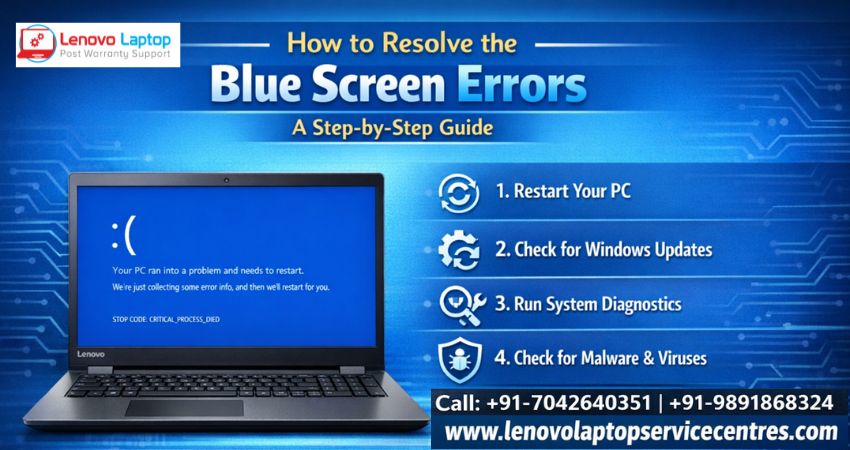
Have you ever been working on your laptop when suddenly the screen turns blue with an error message and your system restarts unexpectedly? If yes, you’ve encountered one of the most frustrating issues in Windows systems — Blue Screen Errors. These errors can cause data loss, interrupt work, and create panic, especially if they happen frequently.
In this comprehensive guide, we’ll explain what Blue Screen Errors are, why they occur, and how you can fix them step by step. If the issue still persists, professional help from Lenovo Laptop Service Center is always available with affordable and reliable solutions.
What Are Blue Screen Errors?
Blue Screen Errors, also known as the “Blue Screen of Death” (BSOD), occur when your Windows operating system encounters a critical problem that it cannot recover from. To prevent further damage, the system automatically shuts down and displays a blue screen with an error code.
These errors may appear due to hardware failures, corrupted drivers, overheating, RAM issues, hard disk errors, or malware infections.
Common Causes of Blue Screen Errors
Identifying the exact reason behind the issue is the essential first move in fixing it effectively and preventing it from happening again. Here are some common reasons:
- Faulty or outdated device drivers
- Corrupted system files
- Failing hard drive or SSD
- Defective RAM
- Overheating components
- Virus or malware attacks
- Recent hardware or software changes
- BIOS misconfiguration
If your Lenovo laptop is facing repeated crashes, identifying the exact trigger is crucial before applying any solution.
Step-by-Step Guide to Fix Blue Screen Errors
Step 1: Note the Error Code
Blue Screen Errors occur when the Windows operating system detects a critical problem that it cannot recover from safely. As a protective measure, the system shuts down to prevent hardware damage or data loss.
You may see messages like:
- CRITICAL_PROCESS_DIED
- MEMORY_MANAGEMENT
- IRQL_NOT_LESS_OR_EQUAL
- DRIVER_POWER_STATE_FAILURE
These error codes help identify the root cause of the problem.
Step 2: Restart Your Laptop
Sometimes, Blue Screen Errors occur due to temporary glitches. Restart your laptop and check whether the issue repeats. If it was a one-time crash, your system might function normally afterward.
Step 3: Boot into Safe Mode
Safe Mode allows Windows to start with minimal drivers and services.
- Restart your laptop
- Press F8 or Shift + Restart
- Choose “Troubleshoot”
- Select “Advanced Options”
- Click “Startup Settings”
- Enable Safe Mode
If your laptop works fine in Safe Mode, the issue is likely caused by a driver or third-party software.
Step 4: Update or Roll Back Drivers
Outdated or incompatible drivers are one of the leading causes of Blue Screen Errors.
- Open Device Manager
- Check for devices with warning signs
- Update drivers from official sources
If the problem started after updating a driver, try rolling back to the previous version.
Step 5: Run Windows Memory Diagnostic
Faulty RAM often triggers BSOD.
- Press Windows + R
- Type “mdsched.exe”
- Choose “Restart now and check for problems”
If errors are detected, you may need RAM replacement.
Step 6: Check Hard Drive Health
A failing hard disk can cause repeated crashes.
- Open Command Prompt as Administrator
- Type: chkdsk /f /r
- Press Enter and allow the scan to complete
If bad sectors are found, data backup and drive replacement may be required.
Step 7: Scan for Malware
Viruses and malware can corrupt system files, leading to Blue Screen Errors. Run a full antivirus scan and remove suspicious programs.
Step 8: System Restore
If the issue started recently, restoring your system to a previous stable point can help.
- Go to Control Panel
- Open Recovery
- Select “Open System Restore”
Choose a restore point before the issue started
Step 9: Check for Overheating
Overheating can shut down your laptop abruptly.
- Ensure proper ventilation
- Clean internal dust
- Replace thermal paste if needed
If your laptop gets unusually hot, professional cleaning may be required.
Step 10: Reset or Reinstall Windows
If none of the above steps work, resetting Windows may resolve corrupted system files. However, always back up your important data before reinstalling the operating system.
When to Seek Professional Help?
If Blue Screen Errors continue even after troubleshooting, the issue might be related to:
- Motherboard failure
- GPU malfunction
- Advanced BIOS problems
- Power supply instability
In such cases, expert diagnosis is necessary to avoid further damage.
Why Choose Lenovo Laptop Service Center?
If you’re facing persistent Blue Screen Errors, professional repair ensures accurate and safe solutions. Lenovo Laptop Service Center provides:
- Affordable services without hidden charges
- Doorstep Services for your convenience
- Out-of-Warranty repair service
- Multi-brand service support (HP, Dell, Apple, Samsung, Acer, Asus)
- Expert technicians with years of experience
- Quick diagnosis and genuine spare parts
Whether it’s a RAM issue, motherboard repair, SSD replacement, or software reinstallation, certified technicians can identify the root cause and fix the problem efficiently.
Tips to Prevent Blue Screen Errors in the Future
Prevention is always better than cure. Here are some tips to avoid recurring issues:
- Keep Windows updated
- Install drivers only from trusted sources
- Avoid installing unknown software
- Use licensed antivirus protection
- Regularly clean your laptop internally
- Backup important data frequently
- Avoid overheating by using cooling pads
Regular maintenance helps in extending the life of your Lenovo laptop and reduces unexpected system crashes.
Final Thoughts
Blue Screen Errors can be alarming, but most issues can be resolved with systematic troubleshooting. From updating drivers to checking hardware components, identifying the root cause is key to fixing the problem permanently.
If you are unsure about performing technical steps yourself, it’s always wise to consult professionals. Lenovo Laptop Service Center offers reliable, affordable, and doorstep repair solutions to ensure your laptop runs smoothly again.
Contact: +91-7042640351 | +91-9891868324
Website: Lenovo Laptop Service Center
Don’t let Blue Screen Errors disrupt your productivity. Get your laptop diagnosed and repaired by professionals today and enjoy uninterrupted performance.
Find us on Google - BSS Laptop Repair Center
 Share
Share
 Tweet
Tweet
 Share
Share
 Share
Share
Recent Post
-
-
-
-

-

-

-

-

-

-
-
-

-
-

-

-

-

-

-

-

-

-

-

-

-

-

-

-

-

-

-

-
-

How to Save Money on Lenovo Laptop Repairs
13 Oct 2025
-

-

10 Common Issues Faced by Lenovo Laptop Users
04 Oct 2025
-

-

-

-

-
-

-

-

-

-
Lenovo Laptop Boot Loop Issue – How to Repair
12 Aug 2025
-
Lenovo Laptop Sound Not Working – Easy Fixes
07 Aug 2025
-
-
-
-

-

-

-

How to Factory Reset a Lenovo Laptop?
30 Jun 2025
-
-

-

-

-

-

-

-

Cannot Load Driver ENE.SYS? Try These 6 Fixes!
12 Dec 2024
-

-

-

-

-

-

-

-

-
-
-

-

-

-

-
How to Solve Lenovo Laptop Hanging Problem
26 Oct 2024
-

-

-

How to Restart Lenovo Laptop with Black Screen
22 Oct 2024
-

-

-

-

-

-
-

-

Lenovo Laptop Power Button on but no Display
02 Sep 2024
-

How to Fix Wi-Fi Not Showing on Windows 10/11
30 Aug 2024
-

Lenovo Laptop Touchpad Replacement Cost in India
28 Aug 2024
-

-

-

How to Unlock a Locked Lenovo Laptop Keyboard
12 Aug 2024
-

-
How to Boot Into Safe Mode On a Lenovo Laptop
31 Jul 2024
-

-
-

-

-

How to Check Lenovo Laptop Fan is Working or Not
09 Jul 2024
-

How to Fix Bluetooth Problem in Lenovo Laptop
05 Jul 2024
-

-
How to Install OS (Operating System) on Laptop
27 Jun 2024
-
How to Fix It When Windows 11 Won't Shut Down
21 Jun 2024
-
-

-
-

Lenovo E-41 25 Panel Replacement Cost in India
31 May 2024
-

How to Fix Stuck Keys on Lenovo Laptop Keyboard
30 May 2024
-

-

-
-

-

-
-

Lenovo Laptop Black Screen Issue on Windows 11
17 Apr 2024
-

-

How to Download Lenovo Vantage for Windows 11
15 Apr 2024
-

How to Get Lenovo Accidental Damage Protection
11 Apr 2024
-
-

-

-
Lenovo System Update Download For Windows 11
06 Apr 2024
-
-

-

-

Lenovo Laptop Security Issues in windows 11
04 Apr 2024
-
-

How to Check Battery Health in Lenovo Laptop
30 Mar 2024
-

-

-
-

-
-

-

-

How to Run Hardware Diagnostics on Lenovo Laptop
20 Dec 2023
-

How to find model number of lenovo laptop
18 Dec 2023
-
-
-

-
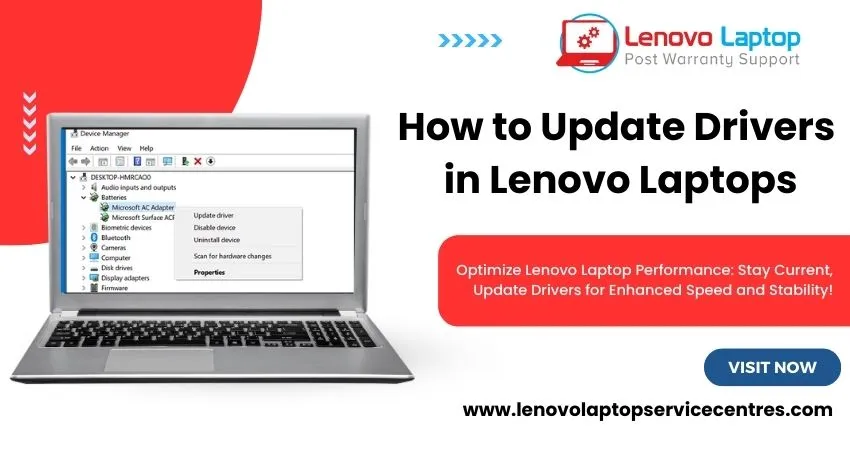
How to Update Drivers in Lenovo Laptops
02 Dec 2023
-

Why is my lenovo laptop making a buzzing noise
28 Nov 2023
-

-
-

-
-

Best Guide: Resolve Lenovo Laptop Touchpad Issue
11 Oct 2023
-
How to Troubleshoot Lenovo Laptop Battery Issues
16 Aug 2023
-

Lenovo Laptop Hinges Repair or Replacement Cost
09 Aug 2023
-
How to Find Lenovo Laptop Serial Number
08 Aug 2023
-

-

Lenovo Laptop SSD Upgradation Cost
18 Jul 2023
-

Lenovo Laptop Camera Replacement Cost
18 Jul 2023
-

-

Lenovo Laptop Battery Replacement Cost
13 Jul 2023
-

Lenovo Laptop Screen Replacement Cost
12 Jul 2023
-

Lenovo Laptop Keyboard Replacement Cost
12 Jul 2023
-

-

How to Fix Camera Issue in Lenovo Laptop
07 Jul 2023
-

How to Format Lenovo Laptop with USB
06 Jul 2023
-

How to Increase Battery Life on a Lenovo Laptop
21 Jun 2023
-

How to Fix White Screen on Lenovo Laptop
20 Jun 2023
-

Lenovo Laptop Motherboard Replacement Cost
19 Jun 2023
-
How do I stop my Lenovo laptop from overheating?
16 Jun 2023
-
-

-

-

-
-
-
-

-
-

-

-

-

-
-
-
-

What is Cost of Lenovo Laptop in India?
22 Sep 2022
-
Lenovo Laptop Problems Black Screen
21 Sep 2022
Looking For A Fast & Reliable Laptop Repair Service
We have professional technicians, fast turnaround times and affordable rates. Book Your Repair Job Today!
We specialize in all types of laptop services and provide reliable and quality door step service to our clients