Call Us: +91-7042640351, 9891868324

Why Is My Lenovo Laptop Stuck on the Lenovo Logo?
By Admin / 04 Aug 2026
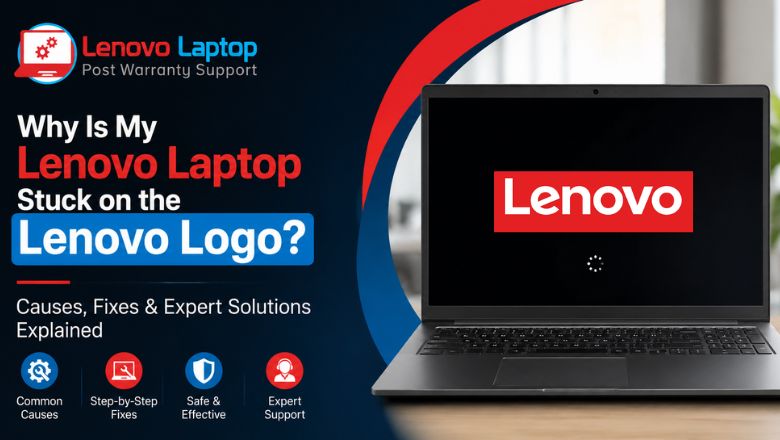
A Lenovo laptop stuck on Lenovo logo is one of the most frustrating startup problems users can experience. You press the power button, the Lenovo logo appears, and then... nothing happens. The system refuses to load Windows, leaving you unable to access your files or continue your work.
This issue can occur on IdeaPad, ThinkPad, Legion, Yoga, and other Lenovo laptop models. Fortunately, it doesn't always mean your laptop has suffered permanent damage. In many cases, the problem can be resolved with a few troubleshooting steps.
In this guide, we'll explain Why is my Lenovo laptop stuck on the Lenovo logo, discuss the common causes, and provide practical solutions based on real-world laptop repair experience.
Quick Answer
If your Lenovo laptop stuck on Lenovo logo, the problem is usually caused by corrupted Windows files, incorrect BIOS settings, a failing SSD/HDD, faulty RAM, or an interrupted Windows update. Start by disconnecting external devices, performing a hard reset, checking Lenovo BIOS settings, and running Windows Startup Repair. If the laptop still won't boot, it may require professional diagnosis to identify hardware issues such as a faulty storage drive or motherboard.
Why Is My Lenovo Laptop Stuck on the Lenovo Logo?
If you're wondering, Why is my Lenovo laptop stuck on the Lenovo logo, the answer depends on what happened before the issue started.
Some of the most common causes include:
- Corrupted Windows startup files
- Interrupted Windows update
- BIOS configuration issues
- Failing SSD or HDD
- Damaged system files
- Faulty RAM
- Malware infection
- External USB devices interfering with startup
- Hardware component failure
Sometimes the laptop freezes after installing updates, while other times it happens unexpectedly after a forced shutdown or power fluctuation.
Signs of a Lenovo Laptop Startup Issue
A Lenovo laptop startup issue can appear in several ways.
Common symptoms include:
- Laptop remains on the Lenovo logo indefinitely
- Windows loading circle never appears
- Endless reboot loop
- Black screen after the Lenovo logo
- Keyboard becomes unresponsive
- Automatic Repair fails repeatedly
- Laptop restarts continuously
Recognizing these symptoms helps determine whether the problem is software-related or caused by hardware.
Step 1: Disconnect All External Devices
Before trying advanced troubleshooting, disconnect every external accessory.
Remove:
- USB drives
- External hard disks
- Memory cards
- Printers
- Docking stations
- USB keyboards and mice
Restart the laptop after disconnecting everything.
Sometimes an external device changes the boot priority, causing the laptop to remain on the logo screen.
Step 2: Perform a Hard Reset
A power reset often fixes temporary firmware glitches.
Follow these steps:
- Turn off the laptop.
- Disconnect the charger.
- Remove the battery if it's removable.
- Hold the power button for 30 seconds.
- Reconnect power.
- Start the laptop again.
This clears residual electrical charge and may resolve temporary startup problems.
Step 3: Enter Lenovo BIOS Settings
Incorrect boot settings frequently lead to startup problems.
Access Lenovo BIOS settings by repeatedly pressing F2, Fn + F2, or using the Novo Button, depending on your laptop model.
Inside BIOS, check:
- SSD or HDD is detected
Boot Mode
Boot Order
Secure Boot settings
System Date & Time
If the storage drive isn't detected, the problem may be hardware-related rather than Windows itself.
Avoid changing advanced BIOS settings unless you're familiar with them.
Step 4: Run Windows Startup Repair
If Windows files have become corrupted, Windows Startup Repair can often restore normal booting.
You'll need a Windows installation USB.
Steps:
- Boot from the USB drive.
- Select Repair your computer.
- Open Troubleshoot.
- Choose Advanced Options.
- Select Windows Startup Repair.
The tool scans startup files and repairs common boot issues automatically.
Step 5: Check for Drive Problems
A damaged SSD or hard drive is another common reason for a Lenovo laptop logo screen problem.
Signs of drive failure include:
- Clicking noises (HDD)
- Slow startup before failure
- Frequent freezing
- Blue screen errors
- Missing boot device messages
You can check drive health using Windows recovery tools or professional diagnostic software.
If the drive has failed, replacing it and reinstalling Windows is usually the best solution.
Step 6: Test the RAM
Faulty memory modules can prevent Windows from loading.
Symptoms include:
- Laptop freezes at the logo
- Random restarts
- Beeping sounds
- No display after logo
If your laptop has removable RAM:
- Remove one RAM stick.
- Boot with the remaining module.
- Repeat using the other stick.
If one module is faulty, replacing it usually resolves the issue.
Step 7: Try Lenovo BIOS Recovery
If the BIOS becomes corrupted during an update or power interruption, the laptop may stop at the Lenovo logo.
In some models, Lenovo BIOS recovery can restore the firmware.
Recovery methods vary depending on the model, so always follow Lenovo's official instructions or seek professional assistance if you're unsure.
Improper BIOS recovery attempts may cause additional problems.
Read Also: How to Resolve Lenovo BIOS Update Failed to Install Error
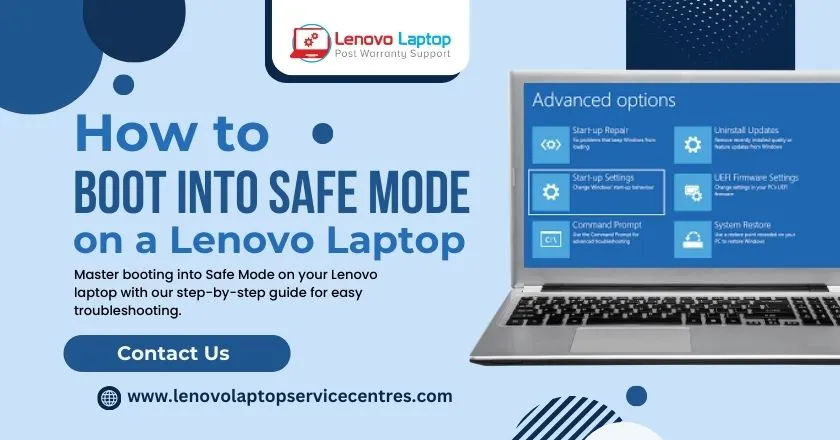
Step 8: Boot into Safe Mode
If Windows starts partially, Safe Mode can help identify software conflicts.
Once inside Safe Mode, you can:
- Uninstall recent updates
- Remove problematic drivers
- Run antivirus scans
- Restore the system
- Remove recently installed applications
This is especially useful if the issue started after a Windows update or new software installation.
Step 9: Scan for System File Corruption
Corrupted Windows files often cause startup failures.
Using Command Prompt in Windows Recovery Environment, you can run tools like:
- System File Checker (SFC)
- DISM
- CHKDSK
These utilities repair damaged Windows files, check disk integrity, and restore missing system components.
For users unfamiliar with command-line tools, professional assistance is recommended to avoid accidental changes.
When the Lenovo Laptop Is Frozen on Lenovo Logo Due to Hardware Failure
Sometimes a Lenovo laptop frozen on Lenovo logo indicates an underlying hardware issue.
Possible hardware failures include:
- Motherboard problems
- SSD controller failure
- Defective RAM
- Processor overheating
- Power supply issues
- Damaged BIOS chip
Professional diagnostics can accurately identify the faulty component before unnecessary replacements are made.
Tips to Prevent Future Startup Problems
While no laptop is immune to software issues, these practices can significantly reduce the chances of experiencing another Lenovo laptop stuck on startup problem.
Helpful tips include:
- Always shut down Windows properly.
- Avoid interrupting Windows updates.
- Keep antivirus software updated.
- Regularly back up important files.
- Monitor SSD health.
- Install BIOS updates only when necessary.
- Use a reliable power source during updates.
Preventive maintenance is far less expensive than recovering lost data or replacing damaged hardware.
When Should You Seek Professional Repair?
If you've tried the troubleshooting methods above and your laptop still won't boot, professional repair may be necessary.
You should seek expert assistance if:
- IOS cannot detect the storage drive.
- Laptop repeatedly freezes after multiple repairs.
- The system powers off unexpectedly.
- You hear unusual clicking or beeping sounds.
- The motherboard has physical damage.
- Important business or personal data needs recovery.
Experienced technicians use advanced diagnostic tools to identify the exact cause without risking your data.
Why Choose Lenovo Laptop Service Centers?
At Lenovo Laptop Service Centers, we specialize in diagnosing and repairing all types of Lenovo laptop startup problems.
Our experienced technicians can resolve issues related to:
- Windows boot failures
- BIOS errors
- SSD and HDD replacement
- Motherboard repairs
- RAM upgrades
- Data recovery
- Operating system installation
- Performance optimization
We use high-quality replacement parts and follow professional repair procedures to restore your laptop efficiently.
Whether your laptop is stuck on the logo screen or facing a complex hardware issue, our team is ready to help.
Call Us: +91-7042640351, 9891868324
Conclusion
A Lenovo laptop stuck on Lenovo logo doesn't always mean the laptop is permanently damaged. In many situations, the issue is caused by corrupted Windows files, incorrect Lenovo BIOS settings, storage drive problems, or hardware faults that can be diagnosed and repaired.
By following the troubleshooting steps outlined above—from checking external devices to using Windows Startup Repair and Lenovo BIOS recovery—you can often identify the root cause and restore normal operation.
If the problem persists despite these solutions, seeking professional assistance is the safest way to protect your data and get your laptop back to working condition quickly. At Lenovo Laptop Service Centers, our technicians have extensive experience resolving every type of Lenovo laptop startup issue, helping customers return to work with minimal downtime.
Frequently Asked Questions (FAQs)
1. Can a virus cause a Lenovo laptop to get stuck on the Lenovo logo?
Yes. In some cases, malware or corrupted system files can interfere with the Windows boot process, preventing the laptop from loading beyond the Lenovo logo screen.
2. Does removing the battery fix a Lenovo laptop stuck on the logo?
Removing the battery (if removable) and performing a power reset may clear temporary hardware glitches. However, it won't fix issues caused by damaged Windows files or failing hardware.
3. Will I lose my data if my Lenovo laptop is stuck on startup?
Not necessarily. If the storage drive is still healthy, your files can often be recovered before reinstalling Windows or replacing faulty hardware.
4. Can a low laptop battery cause the Lenovo logo screen to freeze?
A critically low or unstable power supply is unlikely to be the primary cause, but battery or charger issues can sometimes interrupt the startup process. Try using the original Lenovo charger and ensure the battery has sufficient charge.
References
- https://support.microsoft.com/en-us/windows/experience/startup-boot/startup-repair
- https://support.microsoft.com/en-US/Windows/Experience/Backup-Recovery/windows-recovery-environment
- https://support.microsoft.com/en-US/Windows/Experience/Backup-Recovery/recovery-options-in-windows
- https://download.lenovo.com/pccbbs/pubs/slim5_14q8x9/ug/html_en/en/feature_desc_recovery_options_winos.html
- https://download.lenovo.com/pccbbs/pubs/t590_p53s/html_en/en/Use_advanced_options_%28topic%29_T0000683107.html
Author Bio
Hi, I'm Pooja, a technical content writer with expertise in laptop repair, troubleshooting, and technology. I enjoy creating well-researched, user-friendly content that helps readers understand and resolve common laptop issues with confidence. Through the Lenovo Laptop Service Centers blog, I share practical troubleshooting guides, maintenance tips, and expert insights based on industry best practices and real-world repair knowledge. My goal is to provide accurate, reliable, and easy-to-follow information that helps users keep their Lenovo laptops running smoothly.
 Share
Share
 Tweet
Tweet
 Share
Share
 Share
Share
Recent Post
-

Why Won't My Lenovo Laptop Detect the SSD?
21 Oct 2026
-
-
Why Does Lenovo Laptop Wake Up Automatically?
08 Oct 2026
-
-
How to Fix Lenovo Laptop That Keeps Restarting
19 Sep 2026
-

How to Recover Data from a Dead Lenovo Laptop
11 Sep 2026
-

-
-
-
-

-

-

-

-

-

-
-
-
-
-

-

-

-

-

-

-

-

-

-

-

-

-

-

-

-

-

-

-
-

How to Save Money on Lenovo Laptop Repairs
13 Oct 2025
-

-

10 Common Issues Faced by Lenovo Laptop Users
04 Oct 2025
-
-
-

-

-

-

-

-

-

-
Lenovo Laptop Boot Loop Issue – How to Repair
12 Aug 2025
-
Lenovo Laptop Sound Not Working – Easy Fixes
07 Aug 2025
-
-
-
-
-

-
-
How to Factory Reset a Lenovo Laptop?
30 Jun 2025
-
-

-

-

-

-

-

-

Cannot Load Driver ENE.SYS? Try These 6 Fixes!
12 Dec 2024
-

-

-

-
-

-
-

-

-
-
-

-

-

-

-
How to Solve Lenovo Laptop Hanging Problem
26 Oct 2024
-

-

-

How to Restart Lenovo Laptop with Black Screen
22 Oct 2024
-

-

-
-

-

-
-

-

Lenovo Laptop Power Button on but no Display
02 Sep 2024
-

How to Fix Wi-Fi Not Showing on Windows 10/11
30 Aug 2024
-

Lenovo Laptop Touchpad Replacement Cost in India
28 Aug 2024
-

-
-

How to Unlock a Locked Lenovo Laptop Keyboard
12 Aug 2024
-

-
How to Boot Into Safe Mode On a Lenovo Laptop
31 Jul 2024
-

-
-

-

-

How to Check Lenovo Laptop Fan is Working or Not
09 Jul 2024
-

How to Fix Bluetooth Problem in Lenovo Laptop
05 Jul 2024
-

-
How to Install OS (Operating System) on Laptop
27 Jun 2024
-
How to Fix It When Windows 11 Won't Shut Down
21 Jun 2024
-
-

-

-

Lenovo E-41 25 Panel Replacement Cost in India
31 May 2024
-

How to Fix Stuck Keys on Lenovo Laptop Keyboard
30 May 2024
-

-

-

-

-

-
-
Lenovo Laptop Black Screen Issue on Windows 11
17 Apr 2024
-
-

How to Download Lenovo Vantage for Windows 11
15 Apr 2024
-

How to Get Lenovo Accidental Damage Protection
11 Apr 2024
-
-

-
-
Lenovo System Update Download For Windows 11
06 Apr 2024
-

-
-

-
Lenovo Laptop Security Issues in windows 11
04 Apr 2024
-
-
How to Check Battery Health in Lenovo Laptop
30 Mar 2024
-
-
-
-

-
-

-

-
How to Run Hardware Diagnostics on Lenovo Laptop
20 Dec 2023
-
How to find model number of lenovo laptop
18 Dec 2023
-
-
-

-
How to Update Drivers in Lenovo Laptops
02 Dec 2023
-

Why is my lenovo laptop making a buzzing noise
28 Nov 2023
-

-
-

-
-

Best Guide: Resolve Lenovo Laptop Touchpad Issue
11 Oct 2023
-
How to Troubleshoot Lenovo Laptop Battery Issues
16 Aug 2023
-
Lenovo Laptop Hinges Repair or Replacement Cost
09 Aug 2023
-
How to Find Lenovo Laptop Serial Number
08 Aug 2023
-

-

Lenovo Laptop SSD Upgradation Cost
18 Jul 2023
-

Lenovo Laptop Camera Replacement Cost
18 Jul 2023
-
-

Lenovo Laptop Battery Replacement Cost
13 Jul 2023
-

Lenovo Laptop Screen Replacement Cost
12 Jul 2023
-
Lenovo Laptop Keyboard Replacement Cost
12 Jul 2023
-

-

How to Fix Camera Issue in Lenovo Laptop
07 Jul 2023
-

How to Format Lenovo Laptop with USB
06 Jul 2023
-
How to Increase Battery Life on a Lenovo Laptop
21 Jun 2023
-

How to Fix White Screen on Lenovo Laptop
20 Jun 2023
-
Lenovo Laptop Motherboard Replacement Cost
19 Jun 2023
-
How do I stop my Lenovo laptop from overheating?
16 Jun 2023
-
-
-

-

-
-
-
-
-
-
-

-

-

-
-
-
-
What is Cost of Lenovo Laptop in India?
22 Sep 2022
-
Lenovo Laptop Problems Black Screen
21 Sep 2022
Looking For A Fast & Reliable Laptop Repair Service
We have professional technicians, fast turnaround times and affordable rates. Book Your Repair Job Today!
We specialize in all types of laptop services and provide reliable and quality door step service to our clients