Call Us: +91-7042640351, 9891868324

Why Does Lenovo Laptop Date & Time Keep Resetting?
By Admin / 14 Oct 2026
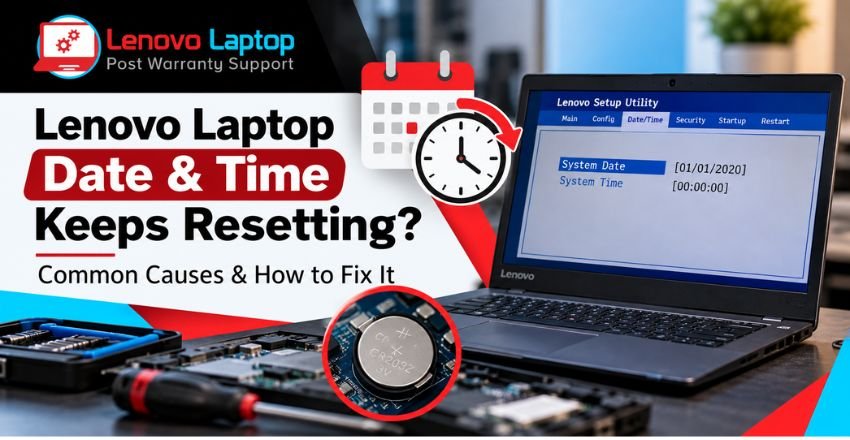
Is your Lenovo laptop showing the wrong date and time every time you turn it on? This issue can be frustrating, especially when you need to attend online meetings, browse websites, or access important applications. The problem may occur because of a weak CMOS battery, incorrect Windows settings, BIOS configuration issues, or a time synchronization error.
If your Lenovo laptop date and time keeps resetting, identifying the actual cause is the first step toward a lasting solution. In this guide, we explain the common reasons behind this problem and provide practical troubleshooting steps you can try at home.
Why Does Lenovo Laptop Date & Time Keep Resetting?
A Lenovo laptop can lose its date and time settings when the internal clock cannot retain the correct information or Windows fails to synchronize the time properly. The most common hardware-related cause is a weak CMOS or real-time clock (RTC) battery. Software settings and BIOS configuration can also contribute to the issue.
Here are the main reasons to check:
- Weak CMOS battery: The battery may no longer retain the system clock and firmware settings when the laptop is powered off.
- Incorrect Windows settings: Automatic time and time zone settings may be disabled or incorrectly configured.
- BIOS or firmware issues: Incorrect firmware settings may cause the system date and time to reset.
- Windows Time service problems: The operating system may not synchronize the clock correctly.
- Recent system changes: A BIOS update, Windows update, or configuration change may coincide with the problem.
The exact cause depends on when the reset occurs and whether the time is incorrect in Windows, BIOS, or both.
Common Signs of a Lenovo Laptop Date and Time Problem
Before trying a fix, observe how your laptop behaves. These symptoms can help narrow down the cause.
1. Date and Time Reset After Shutdown
If the clock becomes incorrect every time you shut down your laptop and turn it on again, the CMOS/RTC battery may be weak. This is particularly likely when the clock resets after the laptop has been disconnected from its power adapter for several hours.
2. Lenovo Laptop Time Keeps Changing While in Use
If your Lenovo laptop time keeps changing even when you are actively using it, check the Windows time synchronization and time zone settings. Incorrect settings or synchronization problems can cause the displayed time to become inaccurate.
3. Lenovo Laptop Date Keeps Resetting to an Old Date
When your Lenovo laptop date keeps resetting to an earlier date or a default value, inspect the date and time displayed in the BIOS or UEFI settings. If the date is also incorrect there, a hardware clock or firmware-related issue may be responsible.
4. Lenovo Laptop Clock Not Working Correctly
A Lenovo laptop clock not working properly may display an incorrect time, stop updating, or show a different time after restarting. The issue may be related to Windows configuration, the time service, or the laptop's internal clock.
How to Fix Lenovo Laptop Date and Time Keeps Resetting
Try the following troubleshooting methods in order. Start with the simplest software checks before considering hardware repairs.
Method 1: Enable Automatic Date and Time
Incorrect Windows settings can cause the displayed date and time to become inaccurate.
Follow these steps:
- Open Settings on your Lenovo laptop.
- Select Time & language.
- Click Date & time.
- Turn on Set time automatically.
- Select the correct time zone for your location.
- If available, click Sync now to synchronize the clock.
For users in India, the correct time zone is (UTC+05:30) Chennai, Kolkata, Mumbai, New Delhi.
Restart your laptop and check whether the clock remains correct. If the issue returns after every shutdown, continue with the next method.
Method 2: Check the Windows Time Service
The Windows Time service helps maintain accurate system time through synchronization. If synchronization is not working, the displayed clock may become inaccurate.
To check the service:
- Press Windows + R.
- Type services.msc and press Enter.
- Find Windows Time in the services list.
- Open its properties.
- Check its current status and startup configuration.
- If the service is stopped, try starting it if the option is available.
The appropriate service configuration can depend on your Windows edition and whether the laptop is managed by an organization. Restart the computer and test the clock again.
Method 3: Check the BIOS Date and Time
The BIOS or UEFI firmware maintains system configuration information independently of the Windows desktop clock.
To check it:
- Save your work and restart the Lenovo laptop.
- Enter the BIOS/UEFI setup using the key specified for your model, often F1 or F2.
- Locate the system date and time.
- Check whether the values are correct.
- If necessary, set the correct date and time, then save and exit.
The exact key and menu names vary by Lenovo model. Consult the model-specific instructions if you are unsure.
If the BIOS date and time reset again after the laptop has been powered off, the CMOS/RTC battery or another hardware component may require inspection. Avoid changing unrelated BIOS settings.
Method 4: Check for a Weak CMOS/RTC Battery
A failing CMOS/RTC battery is a common explanation when a laptop repeatedly loses its date and time after being switched off.
You may notice these additional signs:
- The date and time reset after shutdown.
- The BIOS displays a date or time warning.
- Firmware settings revert unexpectedly.
- The clock becomes incorrect after the laptop remains disconnected from power.
If these symptoms match your situation, ask a qualified technician to inspect the battery and related circuitry. The battery type and replacement procedure depend on the laptop model, so do not assume every Lenovo laptop uses the same battery.
After replacement, the system date and time may need to be configured again.
Method 5: Check Windows Updates and Firmware
If the problem started after a Windows update or BIOS change, check whether your laptop has pending updates or a relevant manufacturer-recommended firmware update.
Open Settings - Windows Update to check for available updates. For BIOS or firmware updates, use Lenovo's official support resources for your exact model.
Keep the laptop connected to reliable power during a BIOS update, and follow the manufacturer's instructions carefully. An interrupted or incorrect firmware update can cause serious startup problems.
When Should You Contact a Lenovo Laptop Service Centre?
Basic Windows troubleshooting may resolve a synchronization issue. However, professional diagnosis is advisable when the date and time repeatedly reset despite correct settings.
Contact a technician if:
- The BIOS date and time reset after every shutdown.
- You repeatedly receive date and time or CMOS-related startup errors.
- The clock remains incorrect after Windows synchronization.
- Firmware settings keep reverting to their defaults.
- You suspect a faulty RTC circuit or motherboard component.
A technician can inspect the internal battery, check the firmware configuration, and test related hardware before recommending a repair. This helps avoid replacing parts unnecessarily.
Lenovo Laptop Service Centre: Affordable Out-of-Warranty Repairs at Your Doorstep
If your Lenovo laptop continues to lose its date and time, professional troubleshooting can help identify whether the problem is caused by a weak CMOS/RTC battery, incorrect BIOS settings, or another hardware issue. Our Lenovo Laptop Service Centre in Delhi and Lenovo Laptop Service Centre in Mumbai provide affordable, out-of-warranty laptop repair services with convenient doorstep assistance.
For assistance with your Lenovo laptop date and time issue, contact us: +91-7042640351, 9891868324
We provide private repair services for out-of-warranty Lenovo laptops. We are an independent service provider and not an authorised Lenovo service centre.
When contacting us, explain whether your laptop's clock resets after shutdown, changes while Windows is running, or displays an error during startup. This information helps our technicians identify the possible cause and recommend a suitable repair.
Our goal is to provide convenient doorstep service at an affordable price, with repair recommendations based on your laptop's condition. Before proceeding, you can discuss the estimated repair cost and the expected service requirements with our team. We recommend backing up your important files before handing over your laptop for servicing.
Conclusion
If your Lenovo laptop date and time keeps resetting, begin by checking automatic date and time settings, the Windows Time service, and the BIOS clock. When the date and time reset after shutdown, a weak CMOS/RTC battery becomes a more likely explanation.
Identifying when the problem occurs will help you choose the right solution and avoid unnecessary repairs. If software troubleshooting does not resolve the issue, contact Lenovo Laptop Service Centres at +91-7042640351 or 9891868324 for further assistance.
Frequently Asked Questions (FAQs)
1. Can a Lenovo laptop date and time issue affect internet browsing?
Yes. An incorrect system date or time can cause security certificate errors, prevent some websites from loading correctly, and interfere with secure connections. Correcting the system clock may resolve these issues.
2. Why does my Lenovo laptop time reset to 12:00 AM?
If your Lenovo laptop repeatedly resets to 12:00 AM or another default time, the internal clock may not be retaining its settings. A CMOS/RTC battery issue or firmware-related fault may be responsible.
3. Does keeping my Lenovo laptop plugged in prevent the date and time from resetting?
Not necessarily. The RTC battery and main laptop battery serve different purposes, depending on the model. Keeping the charger connected may not resolve a failing RTC battery or another clock-related hardware issue.
4. Why does my Lenovo laptop show the correct time but the wrong date?
This may happen because of an incorrect date setting, a synchronization problem, or a firmware clock issue. Check the date and time settings in Windows and compare them with the BIOS/UEFI settings to help identify the cause.
5. Will resetting my Lenovo laptop fix the date and time problem?
A Windows reset may help if the problem is caused by software configuration, but it generally will not fix a failing CMOS/RTC battery or defective hardware. Check the BIOS clock and troubleshoot the time settings before considering a Windows reset.
References
- https://support.microsoft.com/en-us/windows/experience/personalization/set-time-date-and-time-zone-settings-in-windows
- https://learn.microsoft.com/en-us/windows-server/networking/windows-time-service/windows-time-service-top
- https://learn.microsoft.com/en-us/windows-server/networking/windows-time-service/how-the-windows-time-service-works
Author Bio
Hi, I'm Pooja, a technical content writer with expertise in laptop repair, troubleshooting, and technology. I enjoy creating well-researched, user-friendly content that helps readers understand and resolve common laptop issues with confidence. Through the Lenovo Laptop Service Centers blog, I share practical troubleshooting guides, maintenance tips, and expert insights based on industry best practices and real-world repair knowledge. My goal is to provide accurate, reliable, and easy-to-follow information that helps users keep their Lenovo laptops running smoothly.
 Share
Share
 Tweet
Tweet
 Share
Share
 Share
Share
Recent Post
-
-

Why Does Lenovo Laptop Wake Up Automatically?
08 Oct 2026
-

-

How to Fix Lenovo Laptop That Keeps Restarting
19 Sep 2026
-

How to Recover Data from a Dead Lenovo Laptop
11 Sep 2026
-

-

-

-

-

-

-

-

-

-

-

-

-

-

-

-

-

-

-

-

-

-

-

-

-

-

-

-

-

-

-

-

-

-

How to Save Money on Lenovo Laptop Repairs
13 Oct 2025
-

-

10 Common Issues Faced by Lenovo Laptop Users
04 Oct 2025
-

-

-

-

-

-

-

-

-

-

Lenovo Laptop Boot Loop Issue – How to Repair
12 Aug 2025
-

Lenovo Laptop Sound Not Working – Easy Fixes
07 Aug 2025
-

-

-

-

-

-

-

How to Factory Reset a Lenovo Laptop?
30 Jun 2025
-

-

-

-

-

-

-

-

Cannot Load Driver ENE.SYS? Try These 6 Fixes!
12 Dec 2024
-

-

-

-

-

-

-

-

-

-

-

-

-

-

-

How to Solve Lenovo Laptop Hanging Problem
26 Oct 2024
-

-

-

How to Restart Lenovo Laptop with Black Screen
22 Oct 2024
-

-

-

-

-

-

-

-

Lenovo Laptop Power Button on but no Display
02 Sep 2024
-

How to Fix Wi-Fi Not Showing on Windows 10/11
30 Aug 2024
-

Lenovo Laptop Touchpad Replacement Cost in India
28 Aug 2024
-

-

-

How to Unlock a Locked Lenovo Laptop Keyboard
12 Aug 2024
-

-

How to Boot Into Safe Mode On a Lenovo Laptop
31 Jul 2024
-

-

-

-

-

How to Check Lenovo Laptop Fan is Working or Not
09 Jul 2024
-

How to Fix Bluetooth Problem in Lenovo Laptop
05 Jul 2024
-

-

How to Install OS (Operating System) on Laptop
27 Jun 2024
-

How to Fix It When Windows 11 Won't Shut Down
21 Jun 2024
-

-

-

-

Lenovo E-41 25 Panel Replacement Cost in India
31 May 2024
-

How to Fix Stuck Keys on Lenovo Laptop Keyboard
30 May 2024
-

-

-

-

-

-

-

Lenovo Laptop Black Screen Issue on Windows 11
17 Apr 2024
-

-

How to Download Lenovo Vantage for Windows 11
15 Apr 2024
-

How to Get Lenovo Accidental Damage Protection
11 Apr 2024
-

-

-

-

Lenovo System Update Download For Windows 11
06 Apr 2024
-

-

-

-

Lenovo Laptop Security Issues in windows 11
04 Apr 2024
-

-

How to Check Battery Health in Lenovo Laptop
30 Mar 2024
-

-

-
-

-

-

-

-

How to Run Hardware Diagnostics on Lenovo Laptop
20 Dec 2023
-

How to find model number of lenovo laptop
18 Dec 2023
-

-

-

-

How to Update Drivers in Lenovo Laptops
02 Dec 2023
-

Why is my lenovo laptop making a buzzing noise
28 Nov 2023
-

-

-

-

-

Best Guide: Resolve Lenovo Laptop Touchpad Issue
11 Oct 2023
-

How to Troubleshoot Lenovo Laptop Battery Issues
16 Aug 2023
-

Lenovo Laptop Hinges Repair or Replacement Cost
09 Aug 2023
-

How to Find Lenovo Laptop Serial Number
08 Aug 2023
-

-

Lenovo Laptop SSD Upgradation Cost
18 Jul 2023
-

Lenovo Laptop Camera Replacement Cost
18 Jul 2023
-

-

Lenovo Laptop Battery Replacement Cost
13 Jul 2023
-

Lenovo Laptop Screen Replacement Cost
12 Jul 2023
-

Lenovo Laptop Keyboard Replacement Cost
12 Jul 2023
-

-

How to Fix Camera Issue in Lenovo Laptop
07 Jul 2023
-

How to Format Lenovo Laptop with USB
06 Jul 2023
-

How to Increase Battery Life on a Lenovo Laptop
21 Jun 2023
-

How to Fix White Screen on Lenovo Laptop
20 Jun 2023
-

Lenovo Laptop Motherboard Replacement Cost
19 Jun 2023
-

How do I stop my Lenovo laptop from overheating?
16 Jun 2023
-

-

-

-

-

-

-

-

-

-

-

-

-

-
-

-

-

What is Cost of Lenovo Laptop in India?
22 Sep 2022
-
Lenovo Laptop Problems Black Screen
21 Sep 2022
Looking For A Fast & Reliable Laptop Repair Service
We have professional technicians, fast turnaround times and affordable rates. Book Your Repair Job Today!
We specialize in all types of laptop services and provide reliable and quality door step service to our clients