Call Us: +91-7042640351, 9891868324

Lenovo Laptop Clicking or Grinding Noise: Causes & Fixes
By Admin / 01 Oct 2026
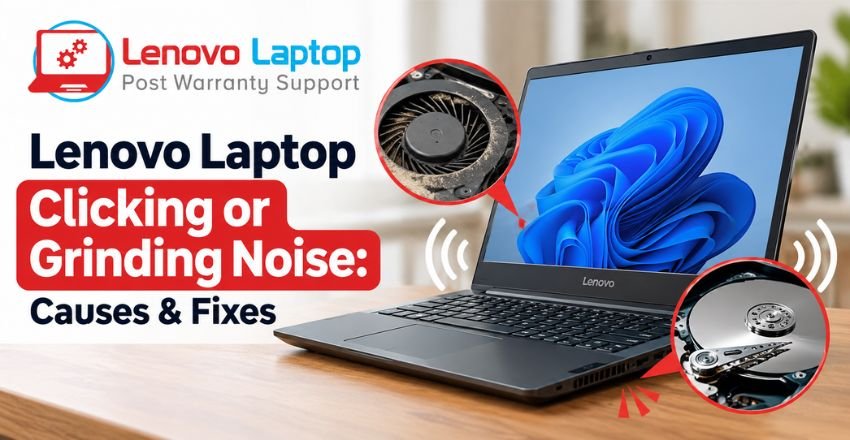
A Lenovo laptop is expected to make some sound while it is running, especially when the cooling fan speeds up during demanding tasks. However, a repeated clicking, grinding, rattling, or unusual mechanical sound should not always be ignored.
If you notice your Lenovo laptop clicking or grinding noise, the source could be something as simple as a busy cooling fan or dust buildup, but it can also indicate a problem with a fan, hard disk, or another internal component. Identifying where the sound is coming from and when it occurs can help determine the next step.
Why Is My Lenovo Laptop Making a Clicking or Grinding Noise?
The first thing to understand is that not every laptop noise means a serious hardware failure. Lenovo's own troubleshooting guidance notes that increased fan activity can be normal when CPU usage is high or when the laptop is handling graphics-intensive applications.
For example, gaming, video editing, large software installations, or multiple demanding applications can increase processor activity and temperature. The cooling system may then increase fan speed to move more air through the laptop.
However, a Lenovo laptop making grinding noise or producing a repeated mechanical clicking sound deserves closer attention, particularly if the noise is new or becoming louder.
1. Cooling Fan May Be the Source
One of the most common sources of unusual laptop noise is the cooling fan.
A fan normally produces a smooth airflow sound. If the fan becomes dusty, develops a mechanical problem, or its movement becomes irregular, you may hear rattling, buzzing, clicking, or grinding sounds.
You may notice the noise more clearly when:
- The laptop becomes warm
- CPU usage increases
- You run games or heavy applications
- The fan starts or changes speed
- Air vents are blocked or dusty
Lenovo recommends checking CPU usage and keeping the air vents clear when investigating unusually high fan activity.
If the noise changes as the fan speed changes, the cooling system becomes one of the first areas worth checking.
2. Dust or Debris Inside the Cooling System
Dust can accumulate around the laptop's ventilation openings and cooling components over time. Restricted airflow can make the cooling system work harder and may contribute to increased fan noise.
This does not necessarily mean that dust itself is creating a grinding sound. Instead, it can contribute to higher temperatures and increased fan activity, making an existing fan problem more noticeable.
Avoid inserting sharp objects into the vents. If internal cleaning is required, it is safer to have the laptop inspected and cleaned using the appropriate procedure for its model.
3. A Mechanical Hard Drive Could Be Clicking
Older Lenovo laptops may contain a traditional HDD rather than an SSD. Unlike an SSD, a mechanical hard drive contains moving components.
A normal HDD can produce some operating sounds, but repeated or unusually loud clicking can indicate a potential drive problem. Seagate's storage guidance specifically identifies repeated tapping, beeping, or clicking as possible signs of abnormal drive operation, while grinding from a drive is treated as a serious warning.
If the sound appears to come from the storage area and the laptop is also showing symptoms such as:
- Slow file access
- Frequent freezing
- Longer startup times
- Files becoming difficult to open
- Unexpected errors
- Drive detection problems
you should take the possibility of storage failure seriously.
Most importantly, back up important data before attempting major troubleshooting. Microsoft also recommends backing up important files before using recovery procedures, while storage manufacturers advise immediate backup when drive failure is suspected.
4. Loose or Vibrating Internal Components
Sometimes the sound is caused by vibration rather than a failing component.
A loose mounting point, screw, bracket, or other internal part may vibrate when the cooling fan is running at higher speeds. The result can sound like a buzzing, rattling, or clicking noise.
This can be difficult to identify from the outside because the sound may appear to come from the fan even when the underlying cause is a vibrating component.
Opening a laptop without the correct tools or experience can create additional damage. If the noise started after a repair, upgrade, drop, or physical impact, professional inspection is particularly useful.
5. Why Does the Noise Change With Laptop Activity?
Pay attention to the pattern.
If your Lenovo laptop clicking sound starts when you open demanding applications and disappears when the system becomes idle, the cooling system deserves attention.
If the noise appears while files are being accessed on an older mechanical drive, storage hardware may need to be checked.
If the noise occurs when you physically move the laptop, open or close the lid, or place it on a different surface, vibration or a loose component may be involved.
This simple observation can give a technician useful information before the laptop is opened.
Lenovo Laptop Making Strange Noise: What Should You Check?
Before assuming that a component needs replacement, note exactly when the sound occurs.
Ask yourself:
Does the sound happen immediately after startup?
A noise that begins as soon as the laptop starts may point toward a component that becomes active during boot, such as the cooling fan or a mechanical storage device.
Does it happen only under heavy workload?
If yes, monitor CPU usage and temperature. Lenovo recommends checking Task Manager when investigating high fan activity.
Does the noise continue when the laptop is idle?
Persistent mechanical noise deserves more attention than a temporary increase in fan speed.
Is your laptop using an HDD or SSD?
This distinction matters because mechanical HDDs contain moving parts, whereas SSDs do not operate with the same mechanical components.
What You Can Do Safely
You can start with a few low-risk checks:
- Save and back up important files.
- Restart the laptop and observe whether the sound returns.
- Check Task Manager for unusually high CPU usage.
- Make sure the laptop is placed on a hard, stable surface.
- Check that ventilation openings are not blocked.
- Note whether the sound changes when running demanding applications.
- If the laptop contains an HDD and clicking becomes frequent, prioritize data backup.
- Arrange a professional inspection if the noise persists or becomes louder.
Do not repeatedly restart a laptop that appears to have a failing mechanical drive just to see whether the noise disappears. If valuable data is stored on it, unnecessary operation can make recovery more difficult in some failure situations.
When Should You Get Lenovo Laptop Repair?
A professional diagnosis is recommended when the noise is persistent, increasing, or accompanied by other problems.
For example, if your Lenovo laptop grinding sound occurs together with overheating, unexpected shutdowns, freezing, startup problems, or storage errors, the issue may require internal inspection.
A technician can determine whether the sound is coming from the cooling fan, storage device, mounting hardware, or another component. Depending on the diagnosis, the solution may involve cleaning, repairing or replacing a fan, checking connections, replacing a failing storage device, or addressing another hardware issue.
The exact repair depends on the Lenovo model and the component involved, so replacing parts based only on the sound is not recommended.
Why You Should Not Ignore a New Mechanical Noise
A laptop that suddenly develops an unfamiliar sound is giving you useful information. In some cases, it may simply be responding to a heavy workload. In others, it can be an early indication that a mechanical component needs attention.
The most important step is to distinguish a normal increase in fan noise from an abnormal mechanical sound.
If your Lenovo laptop making unusual noise is also becoming slower, freezing, overheating, or experiencing storage-related problems, back up your important data and consider getting the system professionally diagnosed.
Get Your Lenovo Laptop Checked
If your Lenovo laptop is making a persistent clicking, grinding, rattling, or unusual fan noise, getting it professionally inspected can help identify the actual source of the problem. The sound may be related to the cooling fan, storage drive, or another internal component, and the right repair depends on the diagnosis.
Lenovo Laptop Service Centres provides independent, out-of-warranty laptop repair services for Lenovo and other major laptop brands. Our technicians can inspect the laptop, identify the likely cause of the noise, and advise you on the appropriate repair or replacement option based on the condition of the component.
For Lenovo laptop repair and diagnosis, contact: +91-7042640351, 9891868324
If the noise is becoming louder or is accompanied by overheating, freezing, unexpected shutdowns, or storage problems, it is better to have the laptop checked rather than continuing to use it without identifying the cause.
Conclusion
A Lenovo Laptop Clicking or Grinding Noise should not be ignored, particularly when the sound is new, becoming louder, or accompanied by overheating, freezing, slow performance, or storage problems. While increased fan noise can sometimes be normal during heavy use, persistent clicking or grinding may indicate an issue with the cooling fan, hard drive, or another internal component.
The safest approach is to identify when the noise occurs, back up important data, and get the laptop professionally inspected if the sound continues. An accurate diagnosis can help determine whether the issue requires cleaning, component repair, or replacement.
For out-of-warranty Lenovo laptop repair, you can contact Lenovo Laptop Service Centres at +91-7042640351 or 9891868324 for independent repair and diagnostic assistance.
FAQs
1. Is it normal for a Lenovo laptop to make a clicking noise?
A brief increase in fan noise can be normal during heavy usage, but persistent clicking, grinding, or rattling is not something to ignore. It may indicate an issue with the fan, storage drive, or another internal component.
2. Can a noisy Lenovo laptop cause further damage?
It depends on the source of the noise. A failing mechanical hard drive, for example, can become worse over time and may put stored data at risk. Getting unusual sounds diagnosed early can help prevent further problems.
3. Can I continue using my Lenovo laptop if it makes a grinding noise?
If the laptop is still working, avoid heavy usage until you identify the cause. If the noise is accompanied by freezing, overheating, startup problems, or storage errors, back up important files and have the laptop inspected.
4. How can I tell if my Lenovo laptop fan needs replacement?
A fan may require professional attention if it produces persistent grinding or rattling, runs unusually loudly, or the laptop frequently overheats despite normal usage and unobstructed ventilation.
5. Does an SSD make clicking or grinding sounds?
No. SSDs have no mechanical moving parts, so they do not produce the same mechanical clicking or grinding sounds associated with traditional hard disk drives. If such a sound is present in an SSD-based laptop, another component should be investigated.
6. Can dust cause my Lenovo laptop to make unusual noises?
Dust buildup can restrict airflow and make the cooling system work harder, which may increase fan noise. However, a persistent mechanical grinding or clicking sound should be professionally checked rather than automatically attributed to dust.
7. Should I replace my Lenovo laptop if it starts making unusual noises?
Not necessarily. The appropriate solution depends on the faulty component, the laptop's condition, and the repair required. A professional diagnosis can help determine whether cleaning, component repair, or replacement is appropriate.
References
- https://support.lenovo.com/uu/en/troubleshoot/ssts100164-fan-speed-is-high-or-loud-fan-noise-thinkpad
- https://www.seagate.com/in/en/support/kb/internal-hard-drive-troubleshooter-006183en/
- https://support.microsoft.com/en-us/windows/experience/backup-recovery/backup-restore-and-recovery-in-windows
- https://support.microsoft.com/en-us/windows/experience/backup-recovery/recovery-options-in-windows
Author Bio
Hi, I'm Pooja, a technical content writer with expertise in laptop repair, troubleshooting, and technology. I enjoy creating well-researched, user-friendly content that helps readers understand and resolve common laptop issues with confidence. Through the Lenovo Laptop Service Centers blog, I share practical troubleshooting guides, maintenance tips, and expert insights based on industry best practices and real-world repair knowledge. My goal is to provide accurate, reliable, and easy-to-follow information that helps users keep their Lenovo laptops running smoothly.
 Share
Share
 Tweet
Tweet
 Share
Share
 Share
Share
Recent Post
-
-

How to Fix Lenovo Laptop That Keeps Restarting
19 Sep 2026
-

How to Recover Data from a Dead Lenovo Laptop
11 Sep 2026
-

-
-

-

-

-

-

-

-

-

-

-
-

-
-

-

-

-

-

-

-

-

-

-

-

-

-

-

-

-

-

-

-
-

How to Save Money on Lenovo Laptop Repairs
13 Oct 2025
-

-

10 Common Issues Faced by Lenovo Laptop Users
04 Oct 2025
-
-

-

-

-
-

-

-

-

-
Lenovo Laptop Boot Loop Issue – How to Repair
12 Aug 2025
-
Lenovo Laptop Sound Not Working – Easy Fixes
07 Aug 2025
-
-
-
-
-

-

-

How to Factory Reset a Lenovo Laptop?
30 Jun 2025
-
-

-

-

-

-

-

-

Cannot Load Driver ENE.SYS? Try These 6 Fixes!
12 Dec 2024
-

-

-

-

-

-

-

-

-
-
-

-

-

-

-
How to Solve Lenovo Laptop Hanging Problem
26 Oct 2024
-

-

-

How to Restart Lenovo Laptop with Black Screen
22 Oct 2024
-

-

-

-

-

-
-

-

Lenovo Laptop Power Button on but no Display
02 Sep 2024
-

How to Fix Wi-Fi Not Showing on Windows 10/11
30 Aug 2024
-

Lenovo Laptop Touchpad Replacement Cost in India
28 Aug 2024
-

-

-

How to Unlock a Locked Lenovo Laptop Keyboard
12 Aug 2024
-

-

How to Boot Into Safe Mode On a Lenovo Laptop
31 Jul 2024
-

-

-

-

-

How to Check Lenovo Laptop Fan is Working or Not
09 Jul 2024
-

How to Fix Bluetooth Problem in Lenovo Laptop
05 Jul 2024
-

-

How to Install OS (Operating System) on Laptop
27 Jun 2024
-
How to Fix It When Windows 11 Won't Shut Down
21 Jun 2024
-

-

-

-

Lenovo E-41 25 Panel Replacement Cost in India
31 May 2024
-

How to Fix Stuck Keys on Lenovo Laptop Keyboard
30 May 2024
-

-

-

-

-

-
-

Lenovo Laptop Black Screen Issue on Windows 11
17 Apr 2024
-

-

How to Download Lenovo Vantage for Windows 11
15 Apr 2024
-

How to Get Lenovo Accidental Damage Protection
11 Apr 2024
-
-

-
-
Lenovo System Update Download For Windows 11
06 Apr 2024
-

-

-

-

Lenovo Laptop Security Issues in windows 11
04 Apr 2024
-
-

How to Check Battery Health in Lenovo Laptop
30 Mar 2024
-

-
-
-

-
-

-

-

How to Run Hardware Diagnostics on Lenovo Laptop
20 Dec 2023
-
How to find model number of lenovo laptop
18 Dec 2023
-
-
-

-
How to Update Drivers in Lenovo Laptops
02 Dec 2023
-

Why is my lenovo laptop making a buzzing noise
28 Nov 2023
-

-
-

-
-

Best Guide: Resolve Lenovo Laptop Touchpad Issue
11 Oct 2023
-
How to Troubleshoot Lenovo Laptop Battery Issues
16 Aug 2023
-

Lenovo Laptop Hinges Repair or Replacement Cost
09 Aug 2023
-
How to Find Lenovo Laptop Serial Number
08 Aug 2023
-

-

Lenovo Laptop SSD Upgradation Cost
18 Jul 2023
-

Lenovo Laptop Camera Replacement Cost
18 Jul 2023
-
-

Lenovo Laptop Battery Replacement Cost
13 Jul 2023
-

Lenovo Laptop Screen Replacement Cost
12 Jul 2023
-

Lenovo Laptop Keyboard Replacement Cost
12 Jul 2023
-

-

How to Fix Camera Issue in Lenovo Laptop
07 Jul 2023
-

How to Format Lenovo Laptop with USB
06 Jul 2023
-

How to Increase Battery Life on a Lenovo Laptop
21 Jun 2023
-

How to Fix White Screen on Lenovo Laptop
20 Jun 2023
-

Lenovo Laptop Motherboard Replacement Cost
19 Jun 2023
-

How do I stop my Lenovo laptop from overheating?
16 Jun 2023
-
-

-

-

-
-
-
-

-

-

-

-

-

-
-
-

-

What is Cost of Lenovo Laptop in India?
22 Sep 2022
-
Lenovo Laptop Problems Black Screen
21 Sep 2022
Looking For A Fast & Reliable Laptop Repair Service
We have professional technicians, fast turnaround times and affordable rates. Book Your Repair Job Today!
We specialize in all types of laptop services and provide reliable and quality door step service to our clients