Call Us: +91-7042640351, 9891868324

Why Is My Lenovo Laptop Battery Not Charging Beyond 60%?
By Admin / 14 Aug 2026
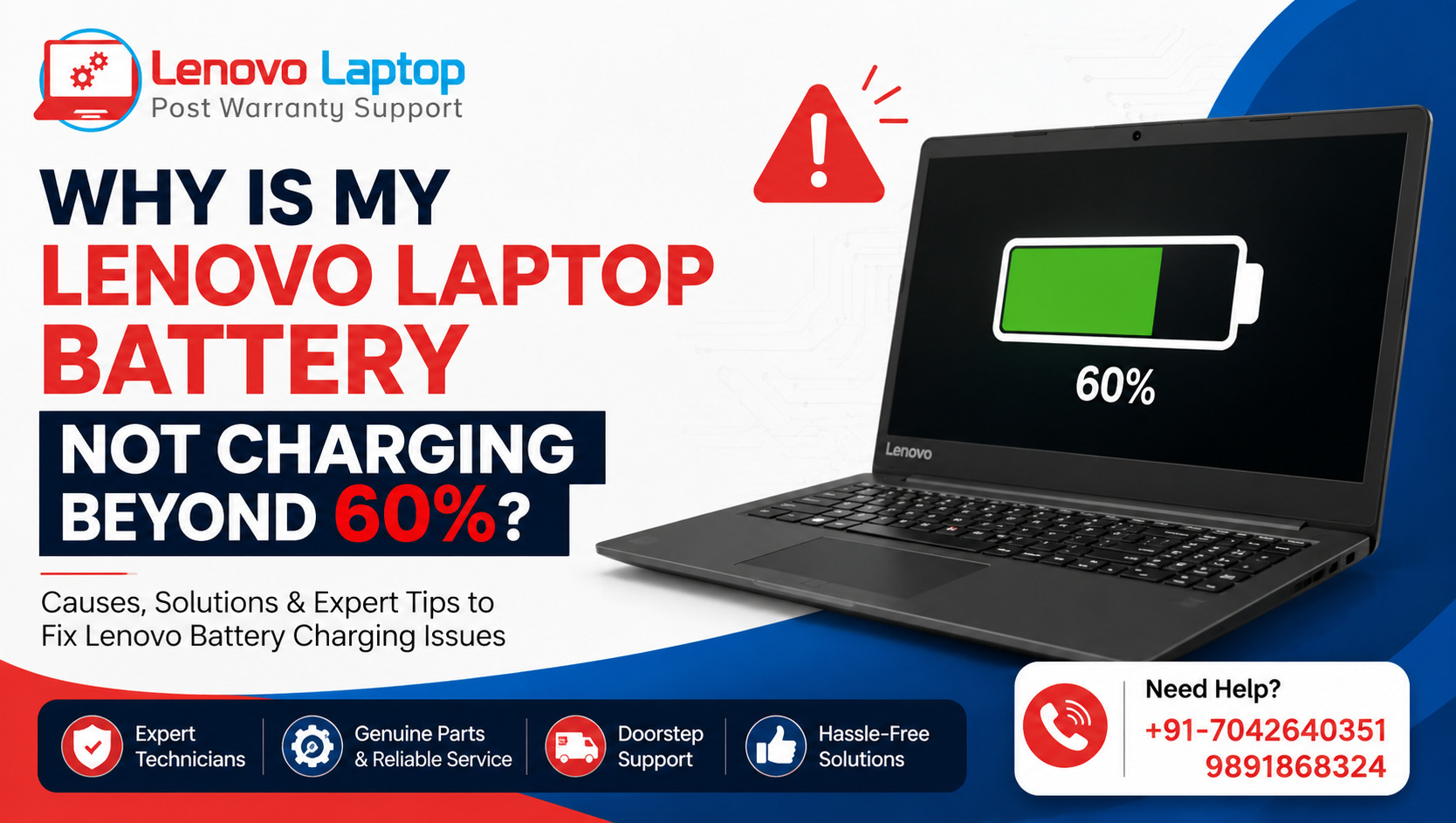
If your Lenovo laptop battery is not charging beyond 60%, it may seem like there is a problem with the battery, charger, or laptop hardware. However, in many cases, this behavior is intentional. Lenovo laptops can include battery protection features that limit charging to around 55–60% to reduce battery wear when the laptop remains connected to power for long periods.
That said, if your Lenovo laptop has suddenly stopped charging at 60% and changing the battery settings does not help, there could be an issue with the charger, battery, drivers, BIOS, or charging hardware.
Why Is My Lenovo Laptop Battery Not Charging Beyond 60%?
The most common reason is a battery protection or conservation feature enabled through Lenovo software. Lenovo Support specifically notes that some IdeaPad systems may stop charging around 55–60% when Conservation Mode or a custom battery charge threshold is enabled.
This feature is designed for users who frequently keep their laptops plugged in. Keeping a lithium-ion battery at a lower charge level can help reduce battery stress over time.
Depending on the Lenovo model, the feature may appear under names such as:
- Conservation Mode
- Battery Charge Threshold
- Battery Conservation
- Battery Maintenance
- Charging Mode
The exact option can vary according to the laptop model and Lenovo software version.
1. Check Lenovo Vantage Battery Settings
If you use Lenovo Vantage, start by checking its battery settings. Lenovo's support documentation recommends checking the battery settings in Lenovo Vantage when a compatible system stops charging around 55–60%.
Open Lenovo Vantage and look for:
Device ? My Device Settings ? Battery
If Conservation Mode is enabled, turn it off when you need the battery to charge fully.
Some Lenovo models use a custom battery charge threshold instead. If that option is available, check whether a charging limit has been configured.
The interface can differ between Lenovo models and Vantage versions, so do not worry if the menu looks slightly different on your laptop.
2. Understand Lenovo Battery Charging Limits
A Lenovo battery charging limit is not necessarily a sign of a damaged battery.
Lenovo has different charging modes depending on the model. Some newer systems use Conservation Mode that keeps the battery around 75–80%, while certain older systems can limit charging to approximately 55–60%.
This explains why one Lenovo laptop may stop at 60%, while another may stop at 80%.
If your laptop has always stopped at approximately 60% while plugged in, the charging limit is one of the first things you should check.
3. Check Lenovo PC Manager or Other Battery Software
Not every Lenovo laptop uses exactly the same software.
Depending on the model, you may have Lenovo PC Manager, Lenovo Energy Management, Lenovo Power Manager, or another Lenovo utility controlling battery charging.
If you cannot find the option in Lenovo Vantage, check the battery or power-management application installed on your laptop.
Lenovo's documentation also notes that charging-mode features are model-dependent. Some systems may not support Conservation Mode at all.
4. Restart the Laptop and Check the Charger
If Conservation Mode is disabled but your Lenovo laptop battery is stuck at 60%, perform a few basic checks.
First, shut down and restart the laptop. Then:
- Disconnect the charger.
- Inspect the charging cable for visible damage.
- Check whether the adapter is the correct one for your Lenovo model.
- Connect the charger securely.
- Try another compatible power outlet.
- Check whether Windows shows “Plugged in, not charging.”
A loose connection or incompatible adapter can sometimes cause charging problems.
If the laptop works normally on AC power but the battery percentage never increases, further battery and charging diagnostics may be necessary.
5. Update Lenovo Drivers and BIOS
Outdated drivers or firmware can sometimes interfere with power-management features.
Lenovo recommends checking for BIOS updates as part of troubleshooting certain battery charging problems.
You can check Lenovo's official support resources for your exact laptop model and look for available:
- BIOS updates
- Power-management drivers
- ACPI-related drivers
- Lenovo Vantage updates
Do not install a BIOS file intended for another Lenovo model. Always identify the exact model before applying firmware updates.
6. Check the ACPI Battery Driver
If a Lenovo battery feature is missing or not working correctly, the ACPI driver may need attention.
Lenovo explains that the Conservation Mode feature can be missing or fail to work when the required ACPI driver is missing or incorrectly installed. The company recommends checking the Lenovo ACPI-Compliant Virtual Power Controller in Device Manager and installing the appropriate driver or Windows update when necessary.
To check:
- Right-click the Windows Start button.
- Open Device Manager.
- Expand System devices.
- Look for the Lenovo ACPI-related power controller.
- Check Windows Update for available driver updates.
- If necessary, obtain the correct driver from Lenovo Support.
7. Consider Battery Health and Temperature
If changing the charging settings does not solve the problem, the battery itself may require inspection.
Laptop batteries naturally lose capacity with age and usage. Excessive heat can also affect charging behavior. Lenovo advises that batteries may not charge properly when they become too hot and recommends allowing an overheated system to cool before attempting to charge it again.
Watch for other warning signs, such as:
- Very short battery backup
- Unexpected shutdowns
- Battery percentage changing suddenly
- Laptop becoming unusually hot
- Battery not detected by Windows
- Battery swelling or physical deformation
If you notice swelling, stop using the laptop and have it professionally inspected.
8. What If the Lenovo Battery Still Will Not Charge Above 60%?
If you have disabled the charging limit, restarted the laptop, checked the charger, updated the relevant software, and the battery still will not charge beyond 60%, the problem may require professional diagnosis.
A technician can check the battery's health, charging circuit, adapter output, DC jack, motherboard charging components, and related power-management hardware.
Avoid repeatedly forcing the battery to charge through unofficial software or attempting hardware repairs without the necessary experience. Incorrect battery handling can create additional safety and hardware risks.
When Should You Contact a Lenovo Laptop Service Centre?
You should consider professional help if your Lenovo laptop charging problem continues after basic troubleshooting or if you notice physical battery damage.
Professional service can help identify whether the issue is caused by:
- Battery degradation
- Faulty AC adapter
- Damaged charging port
- Power-management driver problem
- BIOS or firmware issue
- Charging circuit failure
- Motherboard-related fault
A proper diagnosis is particularly important when the laptop is out of warranty because replacing a battery unnecessarily may not solve the actual problem.
Lenovo Laptop Service Centres – Reliable Out-of-Warranty Support
If your Lenovo laptop has an unresolved Lenovo laptop battery issue, Lenovo Laptop Service Centres specialize in out-of-warranty laptop services and provide doorstep support to clients.
Our technicians can assist with battery-related problems, charging issues, hardware inspection, software troubleshooting, and other Lenovo laptop service requirements. The goal is to identify the actual cause of the problem before recommending a repair or replacement.
For service assistance, contact: +91-7042640351 | +91-9891868324
Final Thoughts
A Lenovo laptop that stops charging at 60% is not automatically suffering from a faulty battery. In many cases, a battery protection feature such as Conservation Mode or a charging threshold is responsible.
Start by checking Lenovo Vantage or the battery-management software installed on your laptop. If the charging limit is disabled and the battery still refuses to go beyond 60%, check the charger, drivers, BIOS, ACPI settings, battery health, and temperature.
If these steps do not resolve the problem, professional diagnosis is the safer option. Identifying the real cause can prevent unnecessary battery replacement and help keep your Lenovo laptop reliable for longer.
Frequently Asked Questions
1. Can a Lenovo laptop work normally while the battery is only at 60%?
Yes. If the laptop runs normally on AC power and the battery consistently stops at around 60%, a charging limit may be active rather than the battery being faulty. Lenovo confirms that some systems intentionally stop charging around 55–60% when battery conservation settings are enabled.
2. How can I check my Lenovo laptop's battery health?
You can use Lenovo Vantage to view battery-related information and assess battery health. Lenovo provides a dedicated Battery Details feature in Lenovo Vantage for checking battery condition.
3. Can I replace the Lenovo laptop battery myself?
It depends on the Lenovo model. Some laptops have removable batteries, while many newer models use internal batteries that require opening the laptop. Lenovo recommends using the battery specified for the particular computer model.
4. Is a Lenovo laptop battery covered under warranty separately?
Battery warranty coverage can vary depending on the Lenovo product, battery type, warranty terms, and region. Check the warranty information for your specific laptop rather than assuming the battery has the same coverage as the entire device.
5. Can a non-original Lenovo charger affect battery charging?
Yes. An incompatible or unsuitable adapter may cause charging problems. Lenovo recommends using an adapter that matches the laptop's required voltage, current, and connector specifications.
References
https://support.lenovo.com/in/en/solutions/ht103159-battery-charge-stops-at-60-plugged-in-not-charging-windows-ideapad
https://support.lenovo.com/in/en/solutions/ht500020-battery-cannot-be-charged-windows-ideapad
https://support.lenovo.com/in/en/solutions/nvid500286-quick-tips-lenovo-vantage-battery-charge-threshold
https://support.lenovo.com/in/en/solutions/ht509084
Author Bio
Hi, I'm Pooja, a technical content writer with expertise in laptop repair, troubleshooting, and technology. I enjoy creating well-researched, user-friendly content that helps readers understand and resolve common laptop issues with confidence. Through the Lenovo Laptop Service Centers blog, I share practical troubleshooting guides, maintenance tips, and expert insights based on industry best practices and real-world repair knowledge. My goal is to provide accurate, reliable, and easy-to-follow information that helps users keep their Lenovo laptops running smoothly.
 Share
Share
 Tweet
Tweet
 Share
Share
 Share
Share
Recent Post
-
How to Fix Lenovo Laptop That Keeps Restarting
19 Sep 2026
-

How to Recover Data from a Dead Lenovo Laptop
11 Sep 2026
-

-
-
-
-

-
-

-

-

-

-
-
-
-
-
-

-

-

-

-
-

-

-

-

-

-

-

-
-

-

-
-

-
-

How to Save Money on Lenovo Laptop Repairs
13 Oct 2025
-
-

10 Common Issues Faced by Lenovo Laptop Users
04 Oct 2025
-
-
-
-

-
-

-

-

-

-
Lenovo Laptop Boot Loop Issue – How to Repair
12 Aug 2025
-
Lenovo Laptop Sound Not Working – Easy Fixes
07 Aug 2025
-
-
-
-
-
-
-
How to Factory Reset a Lenovo Laptop?
30 Jun 2025
-
-

-

-

-

-

-
-

Cannot Load Driver ENE.SYS? Try These 6 Fixes!
12 Dec 2024
-

-

-

-
-

-
-

-

-
-
-

-

-

-

-
How to Solve Lenovo Laptop Hanging Problem
26 Oct 2024
-

-

-

How to Restart Lenovo Laptop with Black Screen
22 Oct 2024
-

-

-
-

-

-
-

-
Lenovo Laptop Power Button on but no Display
02 Sep 2024
-

How to Fix Wi-Fi Not Showing on Windows 10/11
30 Aug 2024
-
Lenovo Laptop Touchpad Replacement Cost in India
28 Aug 2024
-

-
-

How to Unlock a Locked Lenovo Laptop Keyboard
12 Aug 2024
-

-
How to Boot Into Safe Mode On a Lenovo Laptop
31 Jul 2024
-

-
-

-

-

How to Check Lenovo Laptop Fan is Working or Not
09 Jul 2024
-

How to Fix Bluetooth Problem in Lenovo Laptop
05 Jul 2024
-

-
How to Install OS (Operating System) on Laptop
27 Jun 2024
-
How to Fix It When Windows 11 Won't Shut Down
21 Jun 2024
-
-

-
-
Lenovo E-41 25 Panel Replacement Cost in India
31 May 2024
-

How to Fix Stuck Keys on Lenovo Laptop Keyboard
30 May 2024
-
-

-
-

-
-
-
Lenovo Laptop Black Screen Issue on Windows 11
17 Apr 2024
-
-
How to Download Lenovo Vantage for Windows 11
15 Apr 2024
-

How to Get Lenovo Accidental Damage Protection
11 Apr 2024
-
-
-
-
Lenovo System Update Download For Windows 11
06 Apr 2024
-
-
-

-
Lenovo Laptop Security Issues in windows 11
04 Apr 2024
-
-
How to Check Battery Health in Lenovo Laptop
30 Mar 2024
-
-
-
-
-
-

-
-

How to Run Hardware Diagnostics on Lenovo Laptop
20 Dec 2023
-
How to find model number of lenovo laptop
18 Dec 2023
-
-
-
-
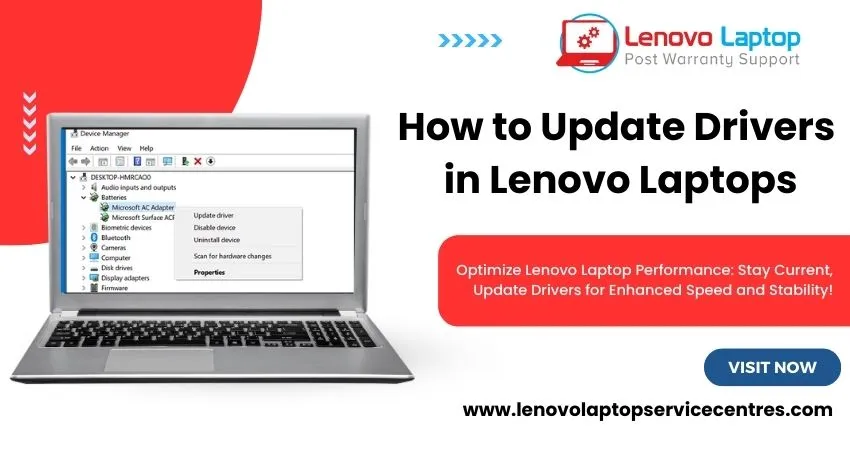
How to Update Drivers in Lenovo Laptops
02 Dec 2023
-

Why is my lenovo laptop making a buzzing noise
28 Nov 2023
-

-
-

-
-

Best Guide: Resolve Lenovo Laptop Touchpad Issue
11 Oct 2023
-
How to Troubleshoot Lenovo Laptop Battery Issues
16 Aug 2023
-
Lenovo Laptop Hinges Repair or Replacement Cost
09 Aug 2023
-
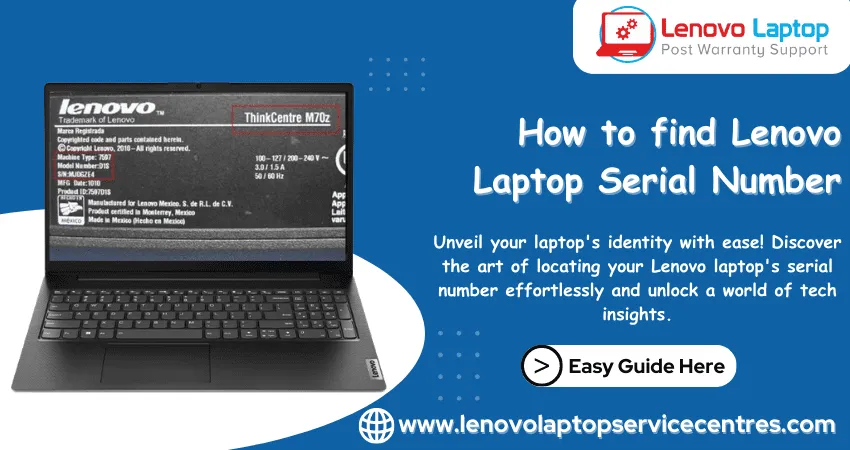
How to Find Lenovo Laptop Serial Number
08 Aug 2023
-
-

Lenovo Laptop SSD Upgradation Cost
18 Jul 2023
-

Lenovo Laptop Camera Replacement Cost
18 Jul 2023
-
-
Lenovo Laptop Battery Replacement Cost
13 Jul 2023
-
Lenovo Laptop Screen Replacement Cost
12 Jul 2023
-
Lenovo Laptop Keyboard Replacement Cost
12 Jul 2023
-

-
How to Fix Camera Issue in Lenovo Laptop
07 Jul 2023
-

How to Format Lenovo Laptop with USB
06 Jul 2023
-
How to Increase Battery Life on a Lenovo Laptop
21 Jun 2023
-

How to Fix White Screen on Lenovo Laptop
20 Jun 2023
-
Lenovo Laptop Motherboard Replacement Cost
19 Jun 2023
-
How do I stop my Lenovo laptop from overheating?
16 Jun 2023
-
-
-

-

-
-
-
-
-
-
-
-

-

-
-
-
-
What is Cost of Lenovo Laptop in India?
22 Sep 2022
-
Lenovo Laptop Problems Black Screen
21 Sep 2022
Looking For A Fast & Reliable Laptop Repair Service
We have professional technicians, fast turnaround times and affordable rates. Book Your Repair Job Today!
We specialize in all types of laptop services and provide reliable and quality door step service to our clients