Call Us: +91-7042640351, 9891868324

Why Won't My Lenovo Laptop Detect the SSD?
By Admin / 21 Oct 2026

Have you installed an SSD in your Lenovo laptop, but it is not showing up in Windows or the BIOS? This issue can be frustrating, especially when your laptop fails to start, displays a boot device error, or does not recognize a newly installed storage drive.
A Lenovo laptop not detecting SSD can be caused by several factors, including an incompatible SSD, a loose connection, incorrect BIOS settings, missing storage drivers, or a failing drive. In some cases, the SSD is detected by the laptop but does not appear in File Explorer because it has not been initialized or assigned a drive letter.
The good news is that you can check a few things before deciding whether professional repair is necessary. In this guide, we explain the common causes, practical troubleshooting steps, and situations when you should contact a technician.
Why Is Your Lenovo Laptop Not Detecting the SSD?
Understanding the cause is the first step toward finding the right solution. Here are some common reasons a Lenovo laptop may fail to recognize an SSD.
1. SSD Compatibility Issues
Not every SSD is compatible with every Lenovo laptop. Some models support SATA SSDs, while others use M.2 NVMe drives. Even when two SSDs look similar, they may use different interfaces or protocols.
Before installing a replacement drive, check your laptop's exact model specifications and supported storage types. An incompatible SSD may not be recognized even when it is installed correctly.
2. Loose or Improper SSD Connection
If the laptop was recently upgraded or repaired, the SSD might not be seated correctly in its slot. A loose connection, damaged connector, or faulty storage slot can prevent the system from detecting the drive.
This is particularly worth checking after an SSD replacement, laptop servicing, or accidental physical impact.
3. Incorrect BIOS or UEFI Settings
The BIOS or UEFI firmware helps the laptop identify connected hardware before Windows starts. If the SSD does not appear in the BIOS, the issue may involve compatibility, firmware, the connection, or the drive itself.
Incorrect storage-controller settings can also affect detection or Windows startup. Avoid changing AHCI, RAID, or VMD settings without checking the manufacturer's instructions for your specific model.
4. SSD Not Initialized in Windows
A new SSD may be detected by the laptop but remain invisible in File Explorer. This can happen when the drive has no initialized partition or assigned drive letter.
In this situation, the SSD may not be faulty. Windows simply may not have prepared the new drive for normal use.
5. Outdated Firmware or Storage Drivers
Storage-controller drivers help Windows communicate with the laptop's storage hardware. Missing or incompatible drivers can cause recognition problems, particularly after a Windows installation or major system change.
Firmware issues can also affect SSD detection on certain models. Any updates should be selected for the exact Lenovo laptop model rather than installed at random.
How to Fix Lenovo Laptop SSD Not Detected
If you are experiencing a Lenovo laptop SSD not detected error, follow these troubleshooting steps in order. The results can help you determine whether the problem is related to Windows, the BIOS, or the physical drive.
Step 1: Restart Your Lenovo Laptop
Start with a simple restart. Save your work, shut down the laptop, wait briefly, and turn it on again.
If you recently installed an SSD, confirm that the laptop is completely powered off before inspecting the hardware. Do not open the laptop while it is running or connected to power.
If the SSD remains undetected, continue with the next step.
Step 2: Check Whether the SSD Appears in BIOS
Restart your Lenovo laptop and enter the BIOS or UEFI setup using the key specified for your model. Depending on the device, you may need to use F1, F2, Fn with a function key, or the Novo button.
Look for storage information under menus such as Information, Storage, or Configuration. Menu names vary by model.
- SSD appears in BIOS: The laptop can detect the drive at firmware level. Investigate Windows settings, partitions, and storage drivers.
- SSD does not appear in BIOS: Check compatibility, the physical connection, firmware, and possible hardware failure.
If the SSD is missing from BIOS, repeatedly reinstalling Windows is unlikely to solve the underlying hardware detection problem.
Step 3: Check Disk Management
If Windows starts normally but the SSD is missing from File Explorer, check whether Windows can see it.
- Press Windows + X.
- Select Disk Management.
- Review the listed disks and their status.
- Look for an unallocated or offline drive.
If the SSD is new, empty, and marked as not initialized, you may be able to initialize it and create a new volume. If a healthy partition has no drive letter, assigning an available letter may make it visible in File Explorer.
Important: Do not initialize, format, or create partitions on a drive containing important files. These actions can make data recovery more difficult. If the SSD previously contained your data, seek recovery advice before modifying it.
Step 4: Check Device Manager
Device Manager can help identify storage hardware or driver issues.
- Right-click the Windows Start button.
- Open Device Manager.
- Expand Disk drives and Storage controllers.
- Look for warning icons or devices that appear to be malfunctioning.
You can also select the option to scan for hardware changes. If a driver problem is suspected, obtain the appropriate storage or chipset driver from Lenovo's official support website for your exact model and Windows version.
Do not uninstall storage-controller drivers or install random driver packages without understanding the consequences, especially if Windows is installed on the affected SSD.
Step 5: Verify SSD Compatibility and Connection
If the drive is not detected in BIOS, verify that its interface, size, and supported capacity match your laptop's specifications.
If you have recently installed the SSD, a technician can inspect the connector, mounting screw, slot, and drive condition. Internal storage layouts differ between
Lenovo IdeaPad, ThinkPad, Yoga, and Legion models, so the correct procedure depends on the device.
Avoid forcing the SSD into a slot or opening a laptop if you are unfamiliar with its internal components.
Step 6: Check for Firmware Updates
Visit Lenovo's official support website and identify your laptop using its model number or serial number. Review the available BIOS/UEFI and storage-related updates.
Only install an update that is relevant to your model and follows Lenovo's instructions. Keep the laptop connected to reliable power, and do not interrupt a BIOS update. If the laptop is unstable or the SSD contains critical data, get professional guidance before proceeding.
If these steps do not resolve the issue, a hardware diagnostic can help determine whether the SSD, connector, or motherboard storage controller needs attention.
When Should You Contact a Lenovo Laptop Repair Service?
If your Lenovo laptop still cannot detect the SSD after basic troubleshooting, the problem may require hardware inspection or advanced diagnostics.
Consider professional assistance if:
- The SSD does not appear in BIOS or UEFI.
- Your laptop displays a boot device error after an SSD upgrade.
- The SSD disconnects frequently or causes system freezes.
- The laptop was dropped or exposed to liquid.
- The drive contains important files that are no longer accessible.
A qualified technician can check the SSD's health, compatibility, connection, and storage controller. If the drive has failed, replacement may be necessary. If the data is important, prioritize recovery before attempting repairs or reinstalling Windows.
Lenovo Laptop SSD Repair Services
At Lenovo Laptop Service Centres, we provide affordable, out-of-warranty laptop repair services at your doorstep. Our technicians can diagnose SSD detection issues, check storage compatibility, and recommend suitable repair or replacement solutions based on your laptop's condition.
Whether your Lenovo laptop is not recognizing the SSD, experiencing boot errors, or facing storage-related problems, we aim to provide reliable repair assistance at a reasonable price.
- Lenovo Laptop Service Center in Mumbai
- Lenovo Laptop Service Center in Delhi
- Lenovo Laptop Service Center in Pune
- Lenovo Laptop Service Center in Gurgaon
- Lenovo Laptop Service Center in Noida
For affordable, out-of-warranty Lenovo laptop repair services at your doorstep, call +91-7042640351 or 9891868324 to discuss your issue and arrange a service visit.
Conclusion
A Lenovo laptop not detecting SSD does not always mean the drive has failed. The issue may be as simple as a missing drive letter or as complex as an incompatible SSD or damaged storage connector. Checking BIOS, Disk Management, Device Manager, and model compatibility can help identify the cause.
If the SSD remains undetected or contains important data, avoid unnecessary formatting and seek professional diagnosis. Lenovo Laptop Service Centres can help assess your laptop and guide you toward a suitable repair solution.
Frequently Asked Questions (FAQs)
1. How do I know if my Lenovo laptop SSD is failing?
Common warning signs include frequent system crashes, unusually slow performance, read or write errors, and repeated drive disconnections. Run an appropriate SSD health diagnostic to check its condition. If your data is important, back it up immediately if accessible.
2. Can a Windows update cause SSD detection problems on a Lenovo laptop?
Yes, a Windows update may sometimes introduce storage driver or compatibility issues. Check Device Manager for driver warnings and install compatible drivers from Lenovo's official support website. If the SSD is missing from BIOS as well, investigate possible hardware or firmware issues.
3. Why does my Lenovo laptop show “Boot Device Not Found” after installing an SSD?
This message can appear when the laptop cannot find a bootable operating system. Check whether the SSD is detected in BIOS and whether Windows is installed correctly. You may also need to verify the boot order or UEFI settings for your specific model.
4. Can I recover data from an SSD that my Lenovo laptop does not recognize?
Data recovery may be possible, depending on the cause of the problem. Avoid formatting the SSD, initializing it, or repeatedly attempting repairs if it contains important files. Consult a professional data recovery specialist if the drive remains inaccessible.
5. Is it possible to upgrade my Lenovo laptop from an HDD to an SSD?
Yes, many Lenovo laptops support an HDD-to-SSD upgrade, but compatibility depends on the exact model. Check the supported SSD type, interface, physical size, and capacity before purchasing a replacement. You may also need to clone your existing drive or reinstall Windows.
References
- https://pcsupport.lenovo.com/us/en/products/laptops-and-netbooks/legion-series/legion-y530-15ich/solutions/ht511772-how-to-update-intel-firmware-me-when-the-ssd-is-not-recognized-in-bios
- https://support.microsoft.com/en-us/windows/experience/storage-filemanagement/disk-management-in-windows
- https://pcsupport.lenovo.com/in/en/products/laptops-and-netbooks/legion-series/legion-y530-15ich/solutions/ht103672-understanding-drivers-bios-uefi-and-firmware
- https://smartsupport.lenovo.com/us/en/solutions/ht117260
Author Bio
Hi, I'm Pooja, a technical content writer with expertise in laptop repair, troubleshooting, and technology. I enjoy creating well-researched, user-friendly content that helps readers understand and resolve common laptop issues with confidence. Through the Lenovo Laptop Service Centers blog, I share practical troubleshooting guides, maintenance tips, and expert insights based on industry best practices and real-world repair knowledge. My goal is to provide accurate, reliable, and easy-to-follow information that helps users keep their Lenovo laptops running smoothly.
 Share
Share
 Tweet
Tweet
 Share
Share
 Share
Share
Recent Post
-
Why Won't My Lenovo Laptop Detect the SSD?
21 Oct 2026
-
-
Why Does Lenovo Laptop Wake Up Automatically?
08 Oct 2026
-
-

How to Fix Lenovo Laptop That Keeps Restarting
19 Sep 2026
-

How to Recover Data from a Dead Lenovo Laptop
11 Sep 2026
-

-
-
-

-

-

-

-

-

-

-
-
-

-
-

-

-

-

-

-

-

-

-

-

-

-

-

-

-

-

-

-

-
-

How to Save Money on Lenovo Laptop Repairs
13 Oct 2025
-

-

10 Common Issues Faced by Lenovo Laptop Users
04 Oct 2025
-
-
-

-

-

-

-

-

-

-
Lenovo Laptop Boot Loop Issue – How to Repair
12 Aug 2025
-
Lenovo Laptop Sound Not Working – Easy Fixes
07 Aug 2025
-
-
-
-
-

-

-

How to Factory Reset a Lenovo Laptop?
30 Jun 2025
-
-

-

-

-

-

-

-

Cannot Load Driver ENE.SYS? Try These 6 Fixes!
12 Dec 2024
-

-

-

-

-

-
-

-

-
-
-

-

-

-

-

How to Solve Lenovo Laptop Hanging Problem
26 Oct 2024
-

-

-

How to Restart Lenovo Laptop with Black Screen
22 Oct 2024
-

-

-

-

-

-

-

-

Lenovo Laptop Power Button on but no Display
02 Sep 2024
-

How to Fix Wi-Fi Not Showing on Windows 10/11
30 Aug 2024
-

Lenovo Laptop Touchpad Replacement Cost in India
28 Aug 2024
-

-

-

How to Unlock a Locked Lenovo Laptop Keyboard
12 Aug 2024
-

-
How to Boot Into Safe Mode On a Lenovo Laptop
31 Jul 2024
-

-

-

-

-

How to Check Lenovo Laptop Fan is Working or Not
09 Jul 2024
-

How to Fix Bluetooth Problem in Lenovo Laptop
05 Jul 2024
-

-
How to Install OS (Operating System) on Laptop
27 Jun 2024
-
How to Fix It When Windows 11 Won't Shut Down
21 Jun 2024
-
-

-

-

Lenovo E-41 25 Panel Replacement Cost in India
31 May 2024
-

How to Fix Stuck Keys on Lenovo Laptop Keyboard
30 May 2024
-

-

-
-

-

-
-

Lenovo Laptop Black Screen Issue on Windows 11
17 Apr 2024
-

-

How to Download Lenovo Vantage for Windows 11
15 Apr 2024
-

How to Get Lenovo Accidental Damage Protection
11 Apr 2024
-
-

-
-
Lenovo System Update Download For Windows 11
06 Apr 2024
-

-

-

-

Lenovo Laptop Security Issues in windows 11
04 Apr 2024
-
-

How to Check Battery Health in Lenovo Laptop
30 Mar 2024
-

-
-
-

-
-

-

-

How to Run Hardware Diagnostics on Lenovo Laptop
20 Dec 2023
-
How to find model number of lenovo laptop
18 Dec 2023
-

-
-

-
How to Update Drivers in Lenovo Laptops
02 Dec 2023
-

Why is my lenovo laptop making a buzzing noise
28 Nov 2023
-

-

-

-
-

Best Guide: Resolve Lenovo Laptop Touchpad Issue
11 Oct 2023
-
How to Troubleshoot Lenovo Laptop Battery Issues
16 Aug 2023
-
Lenovo Laptop Hinges Repair or Replacement Cost
09 Aug 2023
-
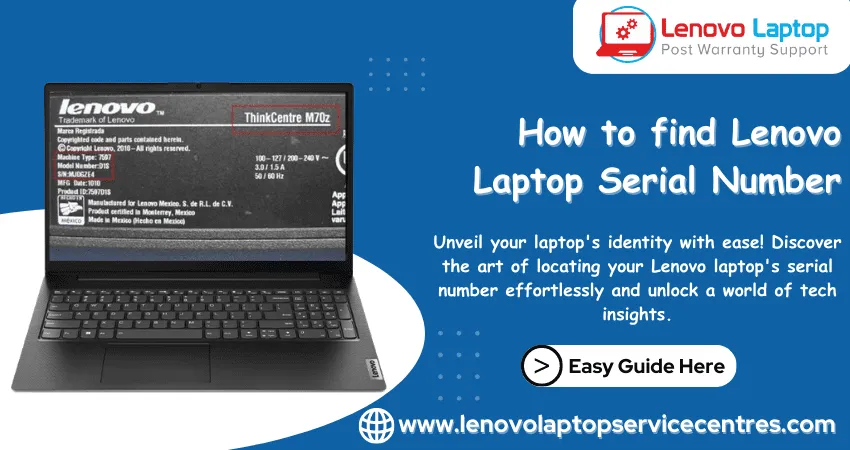
How to Find Lenovo Laptop Serial Number
08 Aug 2023
-

-

Lenovo Laptop SSD Upgradation Cost
18 Jul 2023
-

Lenovo Laptop Camera Replacement Cost
18 Jul 2023
-

-

Lenovo Laptop Battery Replacement Cost
13 Jul 2023
-

Lenovo Laptop Screen Replacement Cost
12 Jul 2023
-

Lenovo Laptop Keyboard Replacement Cost
12 Jul 2023
-

-

How to Fix Camera Issue in Lenovo Laptop
07 Jul 2023
-

How to Format Lenovo Laptop with USB
06 Jul 2023
-

How to Increase Battery Life on a Lenovo Laptop
21 Jun 2023
-

How to Fix White Screen on Lenovo Laptop
20 Jun 2023
-

Lenovo Laptop Motherboard Replacement Cost
19 Jun 2023
-

How do I stop my Lenovo laptop from overheating?
16 Jun 2023
-
-

-

-

-

-
-
-

-
-
-

-

-

-
-
-
-
What is Cost of Lenovo Laptop in India?
22 Sep 2022
-
Lenovo Laptop Problems Black Screen
21 Sep 2022
Looking For A Fast & Reliable Laptop Repair Service
We have professional technicians, fast turnaround times and affordable rates. Book Your Repair Job Today!
We specialize in all types of laptop services and provide reliable and quality door step service to our clients