Call Us: +91-7042640351, 9891868324

Why Does Lenovo Laptop Freeze With an External Monitor?
By Admin / 10 Nov 2026
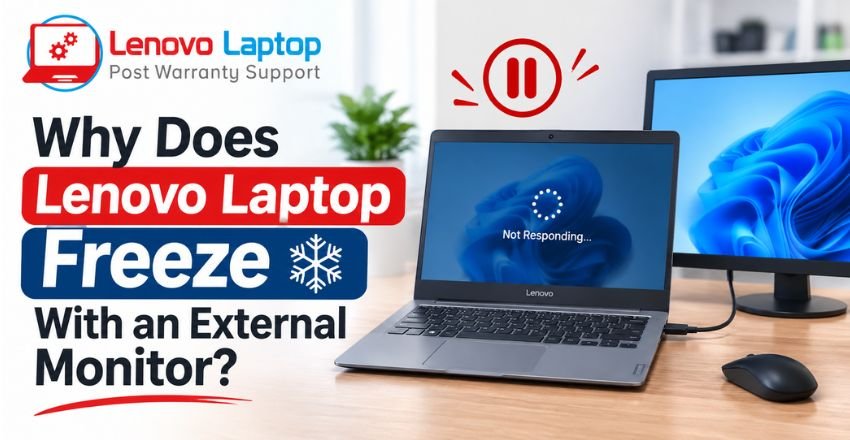
Using an external monitor with a Lenovo laptop can make everyday work more comfortable, especially when multitasking, attending online meetings, editing documents or working with multiple applications. However, sometimes users experience an unexpected problem: the laptop starts freezing, becomes unresponsive or stops displaying properly as soon as an external monitor is connected.
If your Lenovo laptop freezes with external monitor, the issue may be related to outdated graphics drivers, incompatible display settings, a faulty HDMI cable, USB-C connectivity or problems with a docking station. In some cases, Windows display configuration or hardware-related faults may also contribute to the problem.
Understanding the reason behind this behaviour is important before attempting repairs. Let's explore the common causes, practical troubleshooting methods and situations when professional laptop assistance may be required.
Why Does a Lenovo Laptop Freeze When Connected to an External Monitor?
An external monitor requires the laptop's graphics hardware and operating system to manage an additional display. If there is a problem with the display driver, connection or supported display configuration, the laptop may experience freezing, screen flickering or temporary unresponsiveness.
Here are some common reasons behind a Lenovo laptop freezing when connected to external monitor.
1. Outdated or Corrupted Graphics Drivers
Graphics drivers help Windows communicate with the laptop's graphics hardware and connected displays. When these drivers become outdated, corrupted or incompatible with a Windows update, display-related problems may occur.
For example, a user may notice that the laptop works normally without an external display but freezes when switching to Duplicate or Extend mode.
Updating the graphics driver through the appropriate Lenovo support page or the graphics manufacturer's official website may help resolve the issue.
2. Faulty HDMI Cable or Display Port
A damaged HDMI cable, loose connector or malfunctioning display port can interrupt communication between the laptop and monitor.
This may result in:
- Unexpected screen freezing
- Display flickering or blinking
- External monitor disconnecting repeatedly
- Black screens during display switching
- Temporary system unresponsiveness
If your Lenovo laptop screen freezes with HDMI, try connecting another compatible HDMI cable. You can also test the existing monitor with another computer to identify whether the problem comes from the cable, monitor or laptop.
3. Incompatible Screen Resolution or Refresh Rate
Every laptop and external monitor supports specific display resolutions and refresh rates. Selecting a setting that is not properly supported by the connected hardware or docking equipment can cause display instability.
For instance, connecting a high-resolution monitor through an incompatible adapter may create display-related problems.
Open Windows Settings, navigate to System and Display, and check the recommended resolution. Under Advanced display settings, verify that the selected refresh rate is supported by the monitor and laptop.
4. USB-C Adapter or Docking Station Problems
Some Lenovo laptops connect to external displays through USB-C adapters, Thunderbolt ports or docking stations. These accessories depend on compatible hardware, drivers and firmware.
A faulty adapter, outdated dock firmware or connection problem may affect display output.
If the Lenovo external display problem occurs only when using a docking station, disconnect the dock and connect the monitor directly to the laptop if a compatible video port is available. This can help determine whether the dock is contributing to the issue.
5. Graphics Hardware or System Resource Issues
Running multiple applications across two displays can increase graphics processing requirements. Although most modern Lenovo laptops are designed to support external displays, graphics-related faults or resource limitations may affect performance.
If the laptop also freezes during video playback, gaming or other graphics-intensive activities, the issue may require a deeper hardware and software diagnosis.
How to Fix Lenovo Laptop Freezing When Connected to an External Monitor
Before visiting a repair professional, try these troubleshooting steps. They can help identify common software and connection-related problems.
1. Restart the Graphics Driver
Windows provides a keyboard shortcut that can restart the graphics driver without requiring a complete system restart.
Press:
Windows + Ctrl + Shift + B
The screen may briefly flicker or produce a sound while Windows attempts to reset the graphics driver. Check whether the external display starts working normally afterwards.
2. Update the Display Driver
Follow these steps:
- Right-click the Windows Start button.
- Open Device Manager.
- Expand Display adapters.
- Right-click the installed graphics adapter.
- Select Update driver.
- Follow the on-screen instructions.
You can also check the Lenovo support website for graphics drivers specifically intended for your laptop model.
3. Check Windows Display Settings
Incorrect projection settings can sometimes create confusion when switching between displays.
Press Windows + P and select one of the following options:
- PC screen only
- Duplicate
- Extend
- Second screen only
Try Duplicate or Extend and check whether the laptop becomes stable.
4. Test Another HDMI Cable or Monitor
Disconnect the existing cable and try a different compatible cable. If possible, connect your Lenovo laptop to another monitor.
This test helps isolate the source of a Lenovo laptop HDMI display problem.
If the laptop works properly with another monitor, the original monitor or cable may require attention.
5. Check for Windows Updates
An outdated operating system or an incompatible recent update may contribute to display-related problems.
Go to Settings, select Windows Update and check for available updates. Install suitable updates and restart the laptop.
If the issue started immediately after a graphics driver update, consider rolling back the driver through Device Manager instead of installing multiple versions.
6. Disconnect the Docking Station
If you are using a USB-C hub or docking station, disconnect it and test the external monitor using a direct connection, where supported.
Also check whether the dock requires a firmware or driver update. Always use the correct update package for your specific docking station.
Common Signs of a Lenovo Laptop External Monitor Issue
Not every display problem has the same cause. Identifying when the problem occurs can help narrow down the diagnosis.
Symptoms: Laptop freezes immediately after connecting HDMI
Possible reasons: Graphics driver or connection issue
Symptoms: Screen flickers repeatedly
Possible reasons: Cable, port or display configuration problem
Symptoms: Laptop hangs after selecting Extend mode
Possible reasons: Driver or display compatibility issue
Symptoms: External monitor disconnects frequently
Possible reasons: Loose cable, adapter or port problem
Symptoms: Laptop freezes only with a docking station
Possible reasons: Dock firmware or compatibility issue
Symptoms: Both screens become unresponsive
Possible reasons: Graphics driver or system-level issue
This table provides general troubleshooting guidance, not a confirmed diagnosis. The actual cause depends on the laptop model, Windows version and connected display equipment.
When Should You Contact a Lenovo Laptop Repair Professional?
Basic troubleshooting may resolve many external display problems. However, professional diagnosis is advisable if the laptop continues freezing despite trying different cables, monitors and supported display settings.
Consider seeking technical assistance when:
- The HDMI or USB-C port appears physically damaged.
- The laptop freezes with multiple known-working monitors.
- Graphics drivers repeatedly crash or fail to install.
- The system becomes unresponsive during normal usage.
- The laptop shows additional signs of motherboard or graphics hardware problems.
A technician can inspect the display ports, test the graphics hardware, check internal connections and identify whether the problem is software-related or requires component-level repair.
Lenovo Laptop Repair Assistance
If your Lenovo laptop hangs when connected to the monitor and basic troubleshooting has not resolved the issue, getting it checked by an experienced technician can help identify the underlying problem.
We provide private, out-of-warranty Lenovo laptop repair services at affordable prices with convenient doorstep assistance. We are an independent laptop repair service provider and are not an authorised Lenovo Laptop Service Centres. Our technicians assist with display issues, HDMI connectivity problems, graphics errors, motherboard faults and other laptop hardware or software issues.
Whether you are experiencing a Lenovo laptop monitor connection issue, recurring graphics problems or a laptop that becomes unresponsive after connecting an external screen, we can help you explore suitable repair solutions.
Our Lenovo Laptop Repair Service Locations
We provide out-of-warranty Lenovo laptop repair assistance in the following locations:
- Lenovo Laptop Repair Service in Delhi
- Lenovo Laptop Repair Service in Mumbai
- Lenovo Laptop Repair Service in Noida
- Lenovo Laptop Repair Service in Gurgaon
- Lenovo Laptop Repair Service in Greater Noida
- Lenovo Laptop Repair Service in Ghaziabad
- Lenovo Laptop Repair Service in Faridabad
- Lenovo Laptop Repair Service in Pune
Our doorstep repair facility makes it easier to get your laptop checked without the inconvenience of travelling to a repair centre. Service availability depends on your specific location and the nature of the repair.
Need affordable Lenovo laptop repair at your doorstep?
Contact our team to discuss your laptop problem, repair requirements and service availability.
Phone: +91-7042640351 / 9891868324
Conclusion
A Lenovo laptop freezes with external monitor problem can occur due to several reasons, including graphics driver issues, damaged HDMI cables, incompatible display settings, docking station faults or hardware-related problems.
Start by checking the connections, updating or rolling back the graphics driver and testing another monitor. If the laptop continues freezing, professional diagnosis can help identify the underlying cause.
Taking the right troubleshooting approach can help restore stable external display functionality and make your Lenovo laptop more reliable for everyday work.
Frequently Asked Questions (FAQs)
1. Can connecting two monitors slow down a Lenovo laptop?
Yes. Running multiple displays can increase graphics processing requirements. The impact depends on the laptop's processor, graphics hardware, memory, display resolution and applications running simultaneously.
2. Why does my Lenovo laptop work normally until I plug in a second screen?
This may indicate a problem with the graphics driver, display configuration, cable, adapter or external display connection. Testing another cable and monitor can help narrow down the cause.
3. Can BIOS updates fix Lenovo external monitor problems?
In some cases, a compatible BIOS update may address hardware compatibility or firmware-related issues. However, BIOS updates should only be installed when recommended for the specific laptop model, following Lenovo's instructions.
4. How do I know whether my Lenovo HDMI port is damaged?
Common warning signs include a loose connector, visible physical damage, intermittent display output or failure to detect multiple working monitors. A technician can inspect and test the port to confirm whether it is damaged.
5. Can overheating cause a Lenovo laptop to freeze while using an external monitor?
Overheating can contribute to system instability, particularly during demanding graphics tasks. Check whether the laptop becomes unusually hot, its fans run excessively or performance drops before freezing. Cooling system inspection may be necessary if these symptoms occur.
6. Should I replace my Lenovo laptop motherboard if the external display stops working?
Not necessarily. External display problems can originate from cables, ports, drivers, adapters or other components. A proper diagnosis should be performed before considering an expensive motherboard replacement.
References
- https://support.lenovo.com/id/en/solutions/ht062642-how-to-diagnose-video-display-issues-ideapad
- https://support.lenovo.com/mo/en/solutions/ht510459-dock-guidelines-and-troubleshooting
- https://support.lenovo.com/ch/en/solutions/ht507736-external-monitor-may-not-display-after-sleep-hibernate-shut-down-or-restart-of-the-system-thinkpad
- https://support.microsoft.com/en-us/windows/hardware/display-graphics/troubleshoot-external-monitor-connections-in-windows
- https://support.microsoft.com/en-us/windows/hardware/display-graphics/change-the-refresh-rate-on-your-monitor-in-windows
- https://support.microsoft.com/en-us/windows/hardware/display-graphics/troubleshoot-screen-flickering-in-windows
- https://support.microsoft.com/en-us/windows/hardware/drivers/update-drivers-through-device-manager-in-windows
Author Bio
Hi, I'm Pooja, a technical content writer with expertise in laptop repair, troubleshooting, and technology. I enjoy creating well-researched, user-friendly content that helps readers understand and resolve common laptop issues with confidence. Through the Lenovo Laptop Service Centers blog, I share practical troubleshooting guides, maintenance tips, and expert insights based on industry best practices and real-world repair knowledge. My goal is to provide accurate, reliable, and easy-to-follow information that helps users keep their Lenovo laptops running smoothly.
 Share
 Tweet
 Share
 Share
Recent Post
-
-

Why Won't My Lenovo Laptop Detect the SSD?
21 Oct 2026
-
-
Why Does Lenovo Laptop Wake Up Automatically?
08 Oct 2026
-
-
How to Fix Lenovo Laptop That Keeps Restarting
19 Sep 2026
-

How to Recover Data from a Dead Lenovo Laptop
11 Sep 2026
-

-
-
-
-
-
-

-
-
-

-
-
-
-
-
-
-

-

-

-
-

-

-

-

-

-

-
-
-

-

-
-
-
-

How to Save Money on Lenovo Laptop Repairs
13 Oct 2025
-
-

10 Common Issues Faced by Lenovo Laptop Users
04 Oct 2025
-
-
-

-

-
-

-

-

-
-
Lenovo Laptop Boot Loop Issue – How to Repair
12 Aug 2025
-
Lenovo Laptop Sound Not Working – Easy Fixes
07 Aug 2025
-
-
-
-
-
-
-
How to Factory Reset a Lenovo Laptop?
30 Jun 2025
-
-

-

-

-

-

-
-

Cannot Load Driver ENE.SYS? Try These 6 Fixes!
12 Dec 2024
-

-

-

-
-

-
-

-

-
-
-

-

-

-

-
How to Solve Lenovo Laptop Hanging Problem
26 Oct 2024
-

-

-

How to Restart Lenovo Laptop with Black Screen
22 Oct 2024
-

-

-

-

-

-
-

-
Lenovo Laptop Power Button on but no Display
02 Sep 2024
-

How to Fix Wi-Fi Not Showing on Windows 10/11
30 Aug 2024
-
Lenovo Laptop Touchpad Replacement Cost in India
28 Aug 2024
-

-
-

How to Unlock a Locked Lenovo Laptop Keyboard
12 Aug 2024
-

-
How to Boot Into Safe Mode On a Lenovo Laptop
31 Jul 2024
-

-
-

-

-

How to Check Lenovo Laptop Fan is Working or Not
09 Jul 2024
-

How to Fix Bluetooth Problem in Lenovo Laptop
05 Jul 2024
-

-
How to Install OS (Operating System) on Laptop
27 Jun 2024
-
How to Fix It When Windows 11 Won't Shut Down
21 Jun 2024
-
-
-
-
Lenovo E-41 25 Panel Replacement Cost in India
31 May 2024
-

How to Fix Stuck Keys on Lenovo Laptop Keyboard
30 May 2024
-

-

-
-

-
-
-
Lenovo Laptop Black Screen Issue on Windows 11
17 Apr 2024
-
-
How to Download Lenovo Vantage for Windows 11
15 Apr 2024
-
How to Get Lenovo Accidental Damage Protection
11 Apr 2024
-
-
-
-
Lenovo System Update Download For Windows 11
06 Apr 2024
-
-
-

-
Lenovo Laptop Security Issues in windows 11
04 Apr 2024
-
-
How to Check Battery Health in Lenovo Laptop
30 Mar 2024
-
-
-
-

-
-
-
-
How to Run Hardware Diagnostics on Lenovo Laptop
20 Dec 2023
-
How to find model number of lenovo laptop
18 Dec 2023
-
-
-
-
How to Update Drivers in Lenovo Laptops
02 Dec 2023
-

Why is my lenovo laptop making a buzzing noise
28 Nov 2023
-

-
-
-
-

Best Guide: Resolve Lenovo Laptop Touchpad Issue
11 Oct 2023
-
How to Troubleshoot Lenovo Laptop Battery Issues
16 Aug 2023
-
Lenovo Laptop Hinges Repair or Replacement Cost
09 Aug 2023
-
How to Find Lenovo Laptop Serial Number
08 Aug 2023
-
-

Lenovo Laptop SSD Upgradation Cost
18 Jul 2023
-

Lenovo Laptop Camera Replacement Cost
18 Jul 2023
-
-

Lenovo Laptop Battery Replacement Cost
13 Jul 2023
-
Lenovo Laptop Screen Replacement Cost
12 Jul 2023
-
Lenovo Laptop Keyboard Replacement Cost
12 Jul 2023
-

-
How to Fix Camera Issue in Lenovo Laptop
07 Jul 2023
-

How to Format Lenovo Laptop with USB
06 Jul 2023
-
How to Increase Battery Life on a Lenovo Laptop
21 Jun 2023
-
How to Fix White Screen on Lenovo Laptop
20 Jun 2023
-
Lenovo Laptop Motherboard Replacement Cost
19 Jun 2023
-
How do I stop my Lenovo laptop from overheating?
16 Jun 2023
-
-
-
-

-
-
-
-
-
-
-
-

-

-
-
-
-
What is Cost of Lenovo Laptop in India?
22 Sep 2022
-
Lenovo Laptop Problems Black Screen
21 Sep 2022
Looking For A Fast & Reliable Laptop Repair Service
We have professional technicians, fast turnaround times and affordable rates. Book Your Repair Job Today!
We specialize in all types of laptop services and provide reliable and quality door step service to our clients